# jSuites documentation
Complete current documentation for jSuites (44 pages), generated from https://jsuites.net. Index: https://jsuites.net/llms.txt
# JavaScript Plugins Documentation
Source: https://jsuites.net/docs
jSuites is a collection of responsive, cross-platform JavaScript plugins and web components designed for multipurpose use. This suite includes a variety of lightweight, fully responsive JavaScript plugins such as calendars, date pickers, date-time pickers, colour pickers, input masks, and more, catering to diverse web development needs.
jSuites is a compilation of responsive, lightweight JavaScript plugins and web components designed for versatility across various platforms and devices, enhancing user experience in web-based projects. This collection supports maintaining a unified codebase while delivering high-quality user interfaces and applications. Key advantages of jSuites include:
- Small, optimized plugins for efficient performance.
- A diverse range of solutions within a single collection.
- Tools for creating rich, user-friendly web interfaces and applications.
- Simplified management of complex data inputs, maintaining familiarity for users.
- Enhanced software experience for clients.
- Capability to develop sophisticated and attractive UI designs.
- Streamlined, fast, and easy-to-use components.
- Unified coding across multiple platforms for consistent development.
- Uniform, excellent user experience across various devices.
## Installation
```bash
npm install jsuites
```
Or download the source code from our: [Github Repository](https://github.com/jsuites/jsuites)
## jSuites Release Overview
jSuites is a comprehensive suite of common JavaScript plugins and tools for diverse web-based applications. These plugins are fully compatible and easily integrated with any JavaScript library, offering various components to enhance web development projects.
### Base Package Components
- [JavaScript Dropdown](/docs/dropdown): Enhance your forms with dynamic dropdowns and autocomplete features.
- [JavaScript Calendar](/docs/javascript-calendar): Implement interactive calendars for event management and scheduling.
- [JavaScript Input Mask](/docs/javascript-mask): Utilize input masks for formatting and validating data entry.
- [Five-Star Rating](/docs/rating): Integrate a rating system for feedback and review mechanisms.
- [Color Picker](/docs/color-picker): Embed a color picker tool for customizable color selections.
- [Context Menu](/docs/contextmenu): Create right-click context menus for enhanced navigation.
- [JavaScript HTML Editor](/docs/javascript-html-editor): Incorporate a rich text editor for content creation and editing.
- [Smart HTML Form](/docs/rich-form): Develop intelligent forms with advanced validation and data handling.
- [JavaScript Modal](/docs/modal): Use modals for alerts, prompts, and custom dialogues.
- [JavaScript Tags](/docs/javascript-tags): Add tagging functionality for categorization and metadata.
- [JavaScript Tabs](/docs/javascript-tabs): Organize content with tabbed interfaces for better user experience.
### Extensions
- [JavaScript Cropper](/docs/image-cropper): Integrate image cropping tools for photo editing and adjustments. Documentation
- [JavaScript Organogram](/docs/organogram): Visualize hierarchical structures with an organogram chart. Documentation
- [Activity Heatmap](/docs/heatmap): Display user activity with GitHub-style heatmap charts. Documentation
Each component and extension in the jSuites collection is designed to provide developers with versatile, easy-to-integrate solutions for creating rich and user-friendly web interfaces and applications.
## Copyright and license
This software is distributed as MIT. Contact: contact@jspreadsheet.com
---
# JavaScript Ajax Component
Source: https://jsuites.net/docs/ajax
The JavaScript Ajax Component streamlines the management of Ajax requests. It facilitates the creation of request queues and the registration of events, optimizing the handling of asynchronous server communication in web applications.
The jSuites.ajax component is an abstraction layer that efficiently manages JavaScript ajax requests. This vanilla JavaScript implementation boasts several key features, making it a robust choice for handling AJAX interactions.
- **Familiar Syntax**: The library's syntax is intentionally designed to be similar to other popular libraries, easing the learning curve for developers.
- **No External Dependencies**: It operates independently without additional libraries or frameworks, ensuring a lightweight and streamlined integration.
- **Queue Management**: Offers sophisticated control over ajax requests. Users can execute requests in parallel or manage dependent requests in a specific sequence, enhancing the flexibility in handling multiple server interactions.
- **OnComplete Event Handling**: Facilitates handling multiple ajax requests by allowing developers to define actions upon completing these requests. This feature is handy when subsequent processes depend on the completion of prior requests.
- **Data Submission Customization**: The `onbeforesend` callback allows developers to modify or format the data before it is sent, offering greater control over the submission process.
### Basic request example
{.ignore-execution}
```html
```
```jsx
import jSuites from "jsuites"
jSuites.ajax({
url: url,
method: 'POST',
dataType: 'json',
data: { data: JSON.stringify(data) },
beforeSend: function(xhr) {
if (token) {
xhr.setRequestHeader("Authorization", "Bearer " + token);
}
},
success: function(result) {
// Result
jSuites.notification(result);
},
error: function() {
alert('disconnected');
}
});
```
```vue
```
## Features
### BeforeSend Event
The jSuites.ajax component provides a robust feature as a `beforesend` event. This event allows developers to intercept and modify the ajax request before sending it to the server. An everyday use case for this functionality is adding an authorization bearer token to the request, which is essential for handling secure communications and maintaining user authentication in web applications.
Here's how you can utilize the `beforesend` event to add an authorization bearer:
{.ignore-execution}
```html
```
```jsx
import jSuites from "jsuites"
jSuites.ajax({
url: url,
method: 'POST',
dataType: 'json',
data: { data: JSON.stringify(data) },
beforeSend: function(xhr) {
if (token) {
xhr.setRequestHeader("Authorization", "Bearer " + token);
}
},
success: function(result) {
// Result
jSuites.notification(result);
},
error: function() {
alert('disconnected');
}
});
```
```vue
```
### Request Queue
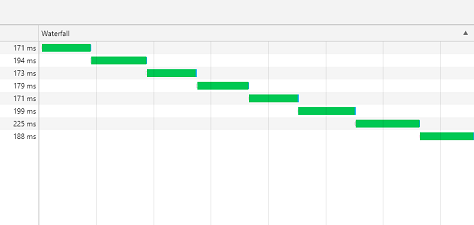
The `jSuites.ajax` component introduces a queue management system for handling ajax requests. By setting the queue property to true, the component ensures that a new ajax request is initiated after the previous one completes. This sequential handling of requests is beneficial in scenarios where the execution order is crucial, and each request's response might impact the subsequent requests.
#### Functionality:
- **Sequential Processing:** When the queue property is enabled, ajax requests are handled one after the other in the order they were initiated. This sequential processing prevents the overlapping of requests, which is essential in situations where each request depends on the response of the previous one.
- **Avoiding Race Conditions**: By ensuring that only one request is processed at a time, the jSuites.ajax queue system effectively prevents race conditions. This is vital for maintaining data integrity, especially when dealing with CRUD operations in a database.
- **Simplified Error Handling**: With queued requests, error handling becomes more manageable as the response to each request can be dealt with individually before moving on to the next.
{.ignore-execution}
```html
```
```jsx
import jSuites from "jsuites"
let url = 'your-endpoint';
let data = {};
for (let i = 0; i < 10; i++) {
jSuites.ajax({
url: url,
method: 'POST',
dataType: 'json',
queue: true,
data: { data: JSON.stringify(data) },
success: function(result) {
}
});
}
```
```vue
```
### Multiple Requests with OnComplete
This example demonstrates executing a series of ajax POST requests using the `jSuites.ajax` method and triggering a single event upon the completion of all these requests. This technique is highly beneficial in scenarios where a batch of asynchronous operations and a collective response are needed after all operations have concluded.
{.ignore-execution}
```html
```
```jsx
import jSuites from "jsuites"
let url = '...'
let requests = [];
for (let i = 0; i < 10; i++) {
requests.push({
url: url,
method: 'POST',
dataType: 'json',
success: function() {
}
});
}
jSuites.ajax(requests, function(result) {
// All requests have been completed
jSuites.notification(result);
});
```
```vue
```
---
# JavaScript Basic Animations
Source: https://jsuites.net/docs/animations
This section introduces a collection of basic JavaScript animations, including slide left, slide right, slide bottom, slide top, fade in, and fade out. These animations are part of the jSuites.animation library, designed to enrich user interfaces with smooth and visually appealing effects.
The `jSuites.animation` library incorporates several straightforward animations to enhance the user experience. These include:
- fadeIn
- fadeOut
- slideLeft
- slideRight
- slideTop
- slideBottom
## Example
### Fade In and Fade Out Animations
Below is an example demonstrating how to implement fadeIn and fadeOut animations:
```html
Content is here
```
```jsx
import jSuites from "jsuites"
import { useRef } from 'react'
import 'jsuites/dist/jsuites.css'
function App() {
const content = useRef(null);
const handleToggleAnimation = function () {
let button = content.current
if (button.style.display == 'none') {
jSuites.animation.fadeIn(button, function () {
// Callback to do something when animation is finished
});
} else {
jSuites.animation.fadeOut(button, function () {
// Callback to do something when animation is finished
});
}
}
return (
Content is here
);
}
export default App;
```
```vue
Content is here
```
---
# Changelog
Source: https://jsuites.net/docs/changelog
## 6.1.3
- Several mask updates, including optional decimals and sci notation fixes.
- New argument for mask render (strict mode).
## 6.1.2
- Several LemonadeJS components improvements.
## 6.0.0
## Major Changes
- Complete rewrite of the mask system with Excel-like behavior and formatting
- New `autoCasting` feature with automatic type detection (dates, currency, numbers, percentages)
- Mask and date utilities extracted into the standalone `@jsuites/utils` package
### Added
- Intelligent AutoCasting with caching for improved performance
### Changed
- Improved Excel compatibility across all mask formats
- Calendar positioning improvements when `controls` is disabled
- Optimized package structure through function reuse and code splitting
- Improved handling of non-numeric input in numeric masks
- Improved toolbar background rendering
- Extended and simplified date helper functions
### Security
- Improved Content Security Policy (CSP) compliance
- Enhanced protections against XSS and injection vulnerabilities
- Safer DOM manipulation across the codebase
### Fixed
- Context menu submenu positioning
- Material Symbols icon support
- Calendar translations for custom month and weekday names
- AutoCasting issues with localized currency formats
- HH24 time format leading zero preservation
- Locale formatting preventing NaN values
- Caret positioning in non-numeric masks
- Calendar positioning when controls are hidden
- Webpack development mode configuration
## 5.13.3
### Added
- AutoCasting feature for automatic type detection (initial implementation)
### Fixed
- Editor button scope issues
## 5.12.0
### General Improvements
- Updated ARIA attributes
- Made the focus helper more flexible across input types
- Improved `jSuites.path`
### AJAX Requests
- Added optional `X-Requested-With` header
- New events: `onerror`, `ontimeout`
### Calendar
- Added formatting support for calendar inputs
### Dropdown
- `allowEmpty` now permits empty values in multi-select dropdowns
### Mask
- Fixed time format handling (`hh`)
- Added text mask `@`
- Miscellaneous fixes
### Validations
- Added time validation
- List validation now accepts an array or comma-separated text
## 5.11.0
### Changed
- Path improvements to handle wrong addresses and edge cases
## 5.10.0
### Added
- Time validation for mask inputs
### Fixed
- Mask hour format handling
## 5.9.0
### Added
- WAI-ARIA accessibility updates across components
- Text mask with `@` symbol support
### Security
- Content Security Policy (CSP) implementation for editor, upload, player, and picker
- Security reviews for `heatmap` and `organogram` components
### Changed
- Context menu with smart positioning and submenu adjustments
## 5.8.6
### Fixed
- Mask decimal rounding precision
## 5.8.5
### Fixed
- ExtractDate hours adjustment
## 5.8.3
### Added
- Mask support for `@` symbol
## 5.8.0
### Added
- Strict argument for mask rendering (default: `true`)
- Range validation for list components
## 5.7.0
### Changed
- Ajax component updates and improvements
- Added `onerror` events to ajax calls
- Loading and animation types
## 5.6.5
### Changed
- Calendar string translation support
## 5.6.4
### Security
- HTML sanitization for paste operations in editor and tags plugins
## 5.5.2
### Changed
- Replaced `onbeforeinput` with prompt-based input handling
## 5.5.1
### Added
- `tracking.state` property for secondary jSuites instances
## 5.5.0
### Added
- `onbeforeinput` event for dropdown components
- `onremoveitem` event for tab components
- Global event system to prevent duplicate declarations
---
# JavaScript Color Picker
Source: https://jsuites.net/docs/color-picker
Enhance web applications with our responsive JavaScript Color Picker. It is compatible with React, Angular, and Vue and offers customizable color selections for diverse projects.
The `jSuites.color` is a versatile and lightweight JavaScript color picker for seamless integration into web projects. Whether you're working with standalone applications or incorporating them into React, Angular, or Vue frameworks, this color picker is engineered for adaptability. It offers a straightforward and intuitive color selection interface, enhancing the user experience. Key features include:
- **Framework Compatibility**: Works effortlessly with popular frameworks like React, Angular, and Vue;
- **Mobile-Optimized**: Delivers a responsive and mobile-friendly user interface;
- **Customization**: Allows tailored color choices and palette configurations;
- **Event Integration**: Supports various events to help with integrations;
- **Versatility**: Can be utilized as a JavaScript plugin or web component;
## Color Picker Implementations
### jSuites Color Picker - Lightweight & Framework Compatible
This page documents the jSuites Color Picker, a lightweight vanilla JavaScript color picker plugin compatible with React, Angular, and Vue.
**Best for:**
- Simple color selection needs
- Framework-agnostic projects
- Lightweight implementations
- No build tools required
### LemonadeJS Color Picker - Reactive Component
For applications requiring reactive data binding and enhanced framework integration, [LemonadeJS Color Picker](https://lemonadejs.net/docs/plugins/color-picker) offers:
- **Reactive Design:** Two-way data binding with automatic updates
- **Lightweight:** 2.59KB gzipped
- **Framework Integration:** Seamless Vue, React, Angular support
- **Dual Modes:** Inline and modal display options
- **Personal Palette:** Customizable user color collections
**[Explore LemonadeJS Color Picker →](https://lemonadejs.net/docs/plugins/color-picker)**
---
### Comparison
| Feature | jSuites | LemonadeJS |
|---------|---------|------------|
| Size | Lightweight | 2.59KB gzipped |
| Reactive | - | ✓ Two-way binding |
| Framework Support | Compatible | ✓ Integrated |
| Custom Palettes | ✓ | ✓ Personal + Gradient |
| Display Modes | Standard | Inline + Modal |
| Best For | Simple pickers | Reactive apps |
---
## Documentation
### Install
```bash
npm install jsuites
```
### Methods
| Method | Description |
|-------------------------|-----------------------------------------------------------------------------------|
| color.open(); | Open the color picker |
| color.close(boolean); | Close the color picker @param int ignoreEvents - Do no execute onclose event |
| color.getValue(); | Get the current value of the color picker |
| color.setValue(string); | Set a new value to the color picker @param hex newColor - Set a new value |
### Events
| Method | Description |
|----------|-------------------------------------------------------------------------------------------|
| onchange | Method executed when a value is changed. (HTMLElement element, String color) => void |
| onclose | Method executed when the color picker is closed. (HTMLElement element) => void |
| onopen | Method executed when the color picker is opened. (HTMLElement element) => void |
### Initialization settings
| Property | Description |
|--------------------------|-----------------------------------------------------|
| fullscreen: boolean | Whether to open in fullscreen mode. Default: false. |
| value: string | Initial value of the component |
| palette: Array of colors | Custom colors |
| placeholder: string | The default instruction text on the element |
| closeOnChange: boolean | Auto-close on color selection |
| doneLabel: string | Label for the done button |
| resetLabel: string | Label for the reset button |
## Examples
### Web Component Color Picker
Create a color picker as a web component:
{.all}
```html
```
### Color Picker
A basic javascript color picker event bound to an HTML input element.
```html
```
```jsx
import { Color } from 'jsuites/react'
import { useRef } from 'react'
import 'jsuites/dist/jsuites.css'
function App() {
const color = useRef(null);
const onChange = function(e, color) {
// Set the font color
e.style.color = color;
// Show on console
console.log('New value:' + color);
}
return (
);
}
export default App;
```
```vue
```
### Custom Colors
Create a color input with custom colors:
```html
```
```jsx
import { Color } from 'jsuites/react'
import { useRef } from 'react'
import 'jsuites/dist/jsuites.css'
function App() {
const color = useRef(null);
return (
);
}
export default App;
```
```vue
```
### More Examples
* [Color Picker Events](/docs/color-picker/events)
* [Color Palettes](/docs/color-picker/color-palettes)
* [Responsive Color Picker](/docs/color-picker/mobile)
---
# JavaScript Color Picker Palettes
Source: https://jsuites.net/docs/color-picker/color-palettes
Discover how to use and customize native `jSuites color` palettes in the JavaScript color picker plugin. Enhance integration and user experience with predefined and dynamic options.
The `jSuites` JavaScript Color Picker plugin includes a collection of predefined color palettes to streamline your development process. These palettes are fully customizable, making it easy to match your application's branding or create dynamic user interfaces.
## Example
Below is an example showcasing how to implement and customize predefined color palettes in your JavaScript color picker:
```javascript
const colorPicker = jsuites.colorPicker(document.getElementById('color-picker'), {
palette: ['#FF5733', '#33FF57', '#3357FF', '#F3FF33', '#FF33C3', '#A833FF']
});
```
## Customization
You can define your color palettes by providing an array of hex codes or RGB values. The color picker plugin also supports advanced features such as:
{.all}
```html
```
Generated using: [Coolors](https://coolors.co/)
## Available Palette
We are going to create more options very soon! But if you wish to contribute [please edit this file on github](https://github.com/jsuites/jsuites/blob/master/src/plugins/palette.js).
| Palette | Colors |
|----------|------------------------------------------------------------------------------------------------------------------------------------------------------------------------------------------------------------------------------------------------------------------------------------------------------------------------------------------------------------------------------------------------------------------------------------------------------------------------------------------------------------------------------------------------------------------------------------------------------------------------------------------------------------------------------------------------------------------------------------------------------------------------------------------------------------------------------------------------------------------------------------------------------------------------------------------------------------------------------------------------------------------------------------------------------------------------------------------------------------------------------------------------------------------------------------------------------------------------------------------------------------------------------------------------------------------------------------------------------------------------------------------------------------------------------------------------------------------------------------------------------------------------------------------------------------------------------------------------------------------------------------------------------------------------|
| material | ["ffebee","fce4ec","f3e5f5","e8eaf6","e3f2fd","e0f7fa","e0f2f1","e8f5e9","f1f8e9","f9fbe7","fffde7","fff8e1","fff3e0","fbe9e7","efebe9","fafafa","eceff1" ], [ "ffcdd2","f8bbd0","e1bee7","c5cae9","bbdefb","b2ebf2","b2dfdb","c8e6c9","dcedc8","f0f4c3","fff9c4","ffecb3","ffe0b2","ffccbc","d7ccc8","f5f5f5","cfd8dc" ], [ "ef9a9a","f48fb1","ce93d8","9fa8da","90caf9","80deea","80cbc4","a5d6a7","c5e1a5","e6ee9c","fff59d","ffe082","ffcc80","ffab91","bcaaa4","eeeeee","b0bec5" ], [ "e57373","f06292","ba68c8","7986cb","64b5f6","4dd0e1","4db6ac","81c784","aed581","dce775","fff176","ffd54f","ffb74d","ff8a65","a1887f","e0e0e0","90a4ae" ], [ "ef5350","ec407a","ab47bc","5c6bc0","42a5f5","26c6da","26a69a","66bb6a","9ccc65","d4e157","ffee58","ffca28","ffa726","ff7043","8d6e63","bdbdbd","78909c" ], [ "f44336","e91e63","9c27b0","3f51b5","2196f3","00bcd4","009688","4caf50","8bc34a","cddc39","ffeb3b","ffc107","ff9800","ff5722","795548","9e9e9e","607d8b" ], [ "e53935","d81b60","8e24aa","3949ab","1e88e5","00acc1","00897b","43a047","7cb342","c0ca33","fdd835","ffb300","fb8c00","f4511e","6d4c41","757575","546e7a" ], [ "d32f2f","c2185b","7b1fa2","303f9f","1976d2","0097a7","00796b","388e3c","689f38","afb42b","fbc02d","ffa000","f57c00","e64a19","5d4037","616161","455a64" ], [ "c62828","ad1457","6a1b9a","283593","1565c0","00838f","00695c","2e7d32","558b2f","9e9d24","f9a825","ff8f00","ef6c00","d84315","4e342e","424242","37474f" ], [ "b71c1c","880e4f","4a148c","1a237e","0d47a1","006064","004d40","1b5e20","33691e","827717","f57f17","ff6f00","e65100","bf360c","3e2723","212121","263238"], |
| fire | ["0b1a6d","840f38","b60718","de030b","ff0c0c","fd491c","fc7521","faa331","fbb535","ffc73a"], ["071147","5f0b28","930513","be0309","ef0000","fa3403","fb670b","f9991b","faad1e","ffc123"], ["03071e","370617","6a040f","9d0208","d00000","dc2f02","e85d04","f48c06","faa307","ffba08"], ["020619","320615","61040d","8c0207","bc0000","c82a02","d05203","db7f06","e19405","efab00"], ["020515","2d0513","58040c","7f0206","aa0000","b62602","b94903","c57205","ca8504","d89b00"], |
### More Examples
* [Color Picker Events](/docs/color-picker/events)
* [Color Palettes](/docs/color-picker/color-palettes)
* [Responsive Color Picker](/docs/color-picker/mobile)
## Related Documentation
- [jSuites Color Picker](https://jsuites.net/docs/color-picker) - Main color picker documentation
- [LemonadeJS Color Picker](https://lemonadejs.net/docs/plugins/color-picker) - Reactive alternative with two-way data binding
---
# JavaScript Color Picker Events
Source: https://jsuites.net/docs/color-picker/events
Learn how to handle JavaScript events in your color picker plugin to create interactive and dynamic user interfaces.
## Events
Easily manage and customize events in your JavaScript color picker to create dynamic and responsive interactions for your application.
| Method | Description |
|----------|--------------------------------------------------------------------------------------------|
| onchange | Triggered when the color value changes. `(HTMLElement element, String color) => void` |
| onclose | Triggered when the color picker is closed. `(HTMLElement element) => void` |
| onopen | Triggered when the color picker is opened. `(HTMLElement element) => void` |
## Example
Define custom actions when a color is selected or when the picker opens or closes:
```html
```
### More Examples
* [Color Picker Events](/docs/color-picker/events)
* [Color Palettes](/docs/color-picker/color-palettes)
* [Responsive Color Picker](/docs/color-picker/mobile)
## Related Documentation
- [jSuites Color Picker](https://jsuites.net/docs/color-picker) - Main color picker documentation
- [LemonadeJS Color Picker](https://lemonadejs.net/docs/plugins/color-picker) - Reactive alternative with two-way data binding
---
# Responsive JavaScript Color Picker
Source: https://jsuites.net/docs/color-picker/mobile
Learn how to configure the responsive behaviour of the jSuites color picker plugin, including a fullscreen mode for smaller screens.
The fullscreen initiation flag enables the color picker to open in fullscreen mode. By default, `jSuites.color` automatically activates fullscreen mode for screens smaller than 800 pixels.
```html
```
### More Examples
* [Color Picker Events](/docs/color-picker/events)
* [Color Palettes](/docs/color-picker/color-palettes)
* [Responsive Color Picker](/docs/color-picker/mobile)
## Related Documentation
- [jSuites Color Picker](https://jsuites.net/docs/color-picker) - Main color picker documentation
- [LemonadeJS Color Picker](https://lemonadejs.net/docs/plugins/color-picker) - Reactive alternative with two-way data binding
---
# JavaScript Context Menu Plugin
Source: https://jsuites.net/docs/contextmenu
Easily create custom right-click context menus in web applications with our JavaScript context menu component. This tool provides extensive customization, from submenus to icons, catering to unique application requirements and enhancing user interaction.
Introducing the jSuites context menu, a dynamic JavaScript plugin designed to enrich web applications by enabling custom right-click context menus on HTML elements. Perfectly adaptable across different web frameworks, this tool is optimized for a smooth and consistent user experience on all devices, including mobile. With its broad customization capabilities, you can easily integrate submenus, icons, and specific event handlers to create a more interactive and user-friendly interface. Key Features:
- **Framework Flexibility**: Easily integrate with React, Angular, Vue.js and other frameworks.
- **Mobile Optimization**: Ensures a responsive and intuitive experience on mobile devices.
- **Extensive Customization**: Offers various options, including custom events, submenus, and icon inclusion, for a tailored application feel.
- **Versatile Implementation**: This can be used as a standalone JavaScript plugin or as a web component, providing flexibility in application development.
## Documentation
### Initialization Options
| Property | Description |
|---------------------------|----------------------------------------------------|
| `items: Array of objects` | Array of item object descriptions. |
| `onclick: function` | Global onclick event. `function(instance, event)` |
### Item options
| Property | Description |
|------------------------------------------------------------|-----------------------------------------------------------------------|
| `type: string` | Context menu item type: line \| divisor \| default |
| `icon: string` | Context menu icon key. (Material icon key icon identification) |
| `id: string` | HTML id property of the item DOM element |
| `disabled: boolean` | The item is disabled |
| `onclick: function(element: HTMLElement, event: e) : void` | Specific onclick event for the element. |
| `shortcut: string` | A short description or instruction for the item. Normally a shortcut. |
| `tooltip: string` | Show this text when the user mouse over the element |
| `submenu: Array of objects` | Submenu items |
## Examples
### Context Menu as a Web Component
Using this example, incorporate a custom context menu into your web application. This implementation showcases setting up a context menu as a web component, allowing for seamless integration and enhanced interactivity within your application.
```html
right click inside the square to open the contextmenu
```
```jsx
import { Contextmenu } from 'jsuites/react'
import { useRef, useEffect } from 'react'
import 'jsuites/dist/jsuites.css'
function App() {
const contextmenu = useRef(null);
const container = useRef(null);
useEffect(() => {
if (container.current) {
container.current.addEventListener("contextmenu", function (e) {
contextmenu.current.open(e);
e.preventDefault();
});
}
}, [])
let style = { width: "400px", height: "300px", border: "1px solid grey" };
return (
);
}
export default App;
```
```vue
```
### Context Menu with Simple JavaScript
Easily add a context menu to your web projects using only vanilla JavaScript for a lightweight and customizable solution.
```html
right click inside the square to open the contextmenu
```
```jsx
import { Contextmenu } from 'jsuites/react'
import { useRef, useEffect } from 'react'
import 'jsuites/dist/jsuites.css'
function App() {
const contextmenu = useRef(null);
const container = useRef(null);
useEffect(() => {
if (container.current) {
container.current.addEventListener("contextmenu", function (e) {
contextmenu.current.open(e);
e.preventDefault();
});
}
}, [])
let style = { width: "400px", height: "300px", border: "1px solid grey" };
return (
);
}
export default App;
```
```vue
```
## Related Tools
- [LemonadeJS Context Menu](https://lemonadejs.com/docs/plugins/context-menu) - Reactive context menu component
- [Jspreadsheet CE Context Menu](https://jspreadsheet.com/docs/ce/contextmenu) - Customize data grid right-click menus (free)
- [Jspreadsheet Pro Context Menu](https://jspreadsheet.com/docs/contextmenu) - Advanced spreadsheet context menu customization (Pro)
---
# JavaScript Drag and Drop Plugin
Source: https://jsuites.net/docs/drag-and-drop
This document introduces a JavaScript drag-and-drop plugin, a lightweight tool for creating sortable lists with interactive drag-and-drop functionality.
This script has approximately 1 KB
`jSuites.sorting` is a compact JavaScript solution for creating user-friendly sortable lists. It allows for easy reordering of list items through a simple drag-and-drop interface.
## Documentation
### Methods
The plugin offers several event-driven methods to interact with the draggable elements:
| Method | Description |
|-------------|-----------------------------------------------------------------------------------------------------------------------------------|
| ondragstart | Called when dragging starts. |
| ondragend | Called when dragging ends. |
| ondrop | Called upon dropping an item. The method signature is `ondrop(DOMElement, int from, int to, DOMElement, DOMElement, mouseEvent).` |
## Examples
### Sorting a HTML list
Below is an example demonstrating how to use `jSuites.sorting` to make a list of items draggable:
```html
```
## Resources
### Working examples on JSFiddle
[jsfiddle working example](https://jsfiddle.net/hodware/804t6qe2/)
## Related Tools
- [LemonadeJS Sortable](https://lemonadejs.com/docs/plugins/sortable) - Reactive sortable lists with drag and drop
---
# JavaScript Dropdown
Source: https://jsuites.net/docs/dropdown
Explore comprehensive examples for managing JavaScript dropdowns, from basic setups to advanced configurations and autocomplete features. Learn to create dynamic select boxes with conditional logic for an enhanced user experience on your web application.
The jSuites offer a lightweight **JavaScript Dropdown** plugin with a complete suite of customizable options that suits multiple application needs. The new version brings native autocomplete, multi-select capabilities, and adaptive
rendering and other features such as:
- Great performance;
- Create dropdowns from a local array of data;
- Load data from a remote data source;
- Autocomplete with local or remote search;
- Lazy loading support;
- Multi-select dropdown options;
- Responsive dropdown rendering;
- Visual enhancements with images and icons;
- Organized dropdowns with item grouping;
## JavaScript Dropdown Implementations
### jSuites Dropdown - Lightweight & Simple
This page documents the jSuites Dropdown, a lightweight vanilla JavaScript dropdown plugin.
**Best for:**
- Simple dropdown needs without framework overhead
- Projects requiring no build tools
- Lightweight implementations
- Jspreadsheet CE projects
### Related Dropdown Solutions
#### LemonadeJS Dropdown - High Performance
For modern applications requiring enhanced performance and framework integration, [LemonadeJS Dropdown](https://lemonadejs.net/docs/plugins/dropdown) offers:
- **Better Performance:** Smart DOM management for 100K+ items
- **Framework Support:** Vue, React, Angular integration
- **Enhanced Accessibility:** Improved ARIA and keyboard navigation
- **Active Development:** Modern high-performance replacement
**[Explore LemonadeJS Dropdown →](https://lemonadejs.net/docs/plugins/dropdown)**
#### Jspreadsheet Pro - Advanced Spreadsheet Dropdowns
For professional spreadsheet applications with advanced dropdown features, [Jspreadsheet Pro](https://jspreadsheet.com/docs/dropdown-and-autocomplete) provides:
- **Conditional Dropdowns:** Change options based on other cell values
- **Dynamic Ranges:** Link to cell ranges (e.g., Sheet1!A1:A4)
- **Remote Search:** Autocomplete from backend APIs with JWT support
- **Professional Features:** Enhanced dropdown editors for data grids
- **Uses LemonadeJS Dropdown:** Modern high-performance component
**[Explore Jspreadsheet Pro Dropdown Editor →](https://jspreadsheet.com/docs/dropdown-and-autocomplete)**
#### Jspreadsheet CE - Open Source Spreadsheets
For open-source spreadsheet projects, [Jspreadsheet CE](https://bossanova.uk/jspreadsheet/docs/javascript-dropdown) uses jSuites Dropdown:
- Community edition spreadsheet
- Basic dropdown column type
- Uses this component (jSuites Dropdown)
- MIT license
**[Explore Jspreadsheet CE →](https://bossanova.uk/jspreadsheet/docs/javascript-dropdown)**
---
### Comparison
| Feature | jSuites | LemonadeJS | Jspreadsheet Pro | Jspreadsheet CE |
|---------|---------|------------|------------------|-----------------|
| Framework | Vanilla JS | Vue/React/Angular | Any | Any |
| Performance | Good | ✓✓ Excellent | ✓✓ Excellent | Good |
| Conditional Dropdowns | - | - | ✓ | - |
| Dynamic Ranges | - | - | ✓ | - |
| License | MIT | MIT | Commercial | MIT |
| Best For | Simple forms | Modern apps | Professional spreadsheets | Open source |
---
## Documentation
### Methods
The `JavaScript dropdown` instance provides the following methods for programmatic interaction:
| Method | Description |
|-----------------------------|----------------------------------------------------------------------------------------------------------------------------------------------------------------------|
| `open();` | Opens the dropdown. |
| `close(boolean);` | Closes the dropdown. `@param boolean ignoreEvents` - If true, does not trigger the `onClose` event. |
| `getText();` | Retrieves the label(s) from the selected option(s) in the dropdown. |
| `getValue();` | Retrieves the value(s) from the selected option(s) in the dropdown. |
| `setValue(string\|array);` | Sets new value(s). `@param mixed newValue` - A single value as a string or multiple values as an array for multi-select dropdowns. |
| `reset();` | Clears all selected options in the dropdown. |
| `add();` | Adds a new option to the dropdown. |
| `setData(mixed);` | Loads new data into the dropdown. `@param mixed data` - The data to load. |
| `getData();` | Retrieves the data currently loaded in the dropdown. |
| `setUrl(string, function);` | Updates the URL from which the dropdown fetches data. `@param string url` `@param function callback` - The callback function to execute after setting the URL. |
| `getPosition(string);` | Retrieves the position of the option associated with the given value. `@param string value` - The value of the option. |
| `selectIndex(int);` | Selects an option based on its index. `@param int index` - The index of the option to select. |
### Events
The following events can be use to integrate the dropdown with your application for enhanced interactivity:
| Event | Description |
|-------------------|---------------------------------------------------------------------------------------------------------------------------------------------------------------------------------------|
| `onopen` | Triggered when the dropdown opens. `(DOMElement element) => void` |
| `onclose` | Triggered when the dropdown closes. `(DOMElement element) => void` |
| `onchange` | Triggered when the selected value changes. `(DOMElement element, Number index, String oldValue, String newValue, String oldLabel, String newLabel) => void` |
| `onfocus` | Triggered when the dropdown receives focus. `(DOMElement element) => void` |
| `onblur` | Triggered when the dropdown loses focus. `(DOMElement element) => void` |
| `onbeforeinput` | Triggered before the item addition prompt is opened, allowing a customized input to be used. The return of this function is the title of the new item. `(Object instance) => void` |
| `onbeforeinsert` | Triggered before a new item is added to the dropdown. `(Object instance, Object item) => void` |
| `oninsert` | Triggered when a new option is added to the dropdown. `(Object instance, Object item, Object dataItem) => void` |
| `onload` | Triggered when the dropdown is fully loaded with data. `(DOMElement element, Object instance, Array data, String currentValue) => void` |
### Initialization Options
Customize your dropdown's behavior with the following initial settings:
| Property | Description |
|-------------------------|------------------------------------------------------------------------------------------------|
| `data: Array` | An array of items to load into the dropdown. |
| `url: string` | The URL of an external file to load dropdown data from. |
| `multiple: boolean` | Set to `true` to allow multiple selections. |
| `autocomplete: boolean` | Enables the autocomplete feature. |
| `type: string` | Sets the render type. Options: `default`, `picker`, or `searchbar`. |
| `width: string` | Specifies the dropdown's default width. |
| `value: string` | Sets the initially selected value. |
| `placeholder: string` | Displays placeholder text when no selection is made. |
| `newOptions: boolean` | Enables controls for adding new options. |
| `lazyLoading: boolean` | Enables lazy loading for improved performance with large datasets. |
| `allowEmpty: boolean` | Allow toggle the selected item on single dropdowns. Default: true |
| `format: 0\|1` | Determines the data format. `0` for `{ text, value }`, `1` for `{ id, name }`. Default is `0`. |
### Dropdown Items
Each option in the dropdown is defined by one object and the possible attributes are the following:
| Property | Description |
|---------------------|------------------------------------------------------------------------|
| `value: mixed` | The item's value. Default format. |
| `text: string` | The item's display label. Default format. |
| `id: mixed` | The item's identifier, used when `format` property is set to `1`. |
| `name: string` | The item's name, used as a label when `format` property is set to `1`. |
| `title: string` | A brief description of the item. |
| `tooltip: string` | Text displayed on mouseover. |
| `image: string` | URL or path to the item's icon image. |
| `group: string` | The name of the group this item belongs to. |
| `synonym: array` | Keywords associated with the item to aid in search. |
| `disabled: boolean` | If `true`, the item is not selectable. |
| `color: number` | A numerical value representing the item's color. |
| `icon: string` | A keyword for a Material Design icon associated with the item. |
## Examples
### Basic Dropdown
Create a simple dropdown with local data:
```html
```
```jsx
import { Dropdown } from 'jsuites/react'
import { useRef } from 'react'
import 'jsuites/dist/jsuites.css'
function App() {
const dropdown = useRef(null);
const data = [
{ value: '1', text: 'Apple' },
{ value: '2', text: 'Banana' },
{ value: '3', text: 'Orange' },
{ value: '4', text: 'Grape' },
];
return (
);
}
export default App;
```
```vue
```
### JavaScript Autocomplete Dropdown
Create an autocomplete dropdown capable of handling a vast dataset using this example:
```html
```
```jsx
import { Dropdown } from 'jsuites/react'
import { useRef } from 'react'
import 'jsuites/dist/jsuites.css'
function App() {
const dropdown = useRef(null);
return (
);
}
export default App;
```
```vue
```
### Dropdown with Icons
Create a dropdown with Material Design icons for a more visual experience:
```html
```
```jsx
import { Dropdown } from 'jsuites/react'
import { useRef } from 'react'
import 'jsuites/dist/jsuites.css'
function App() {
const dropdown = useRef(null);
const data = [
{ value: '1', text: 'Home', icon: 'home' },
{ value: '2', text: 'Search', icon: 'search' },
{ value: '3', text: 'Settings', icon: 'settings' },
{ value: '4', text: 'Favorite', icon: 'favorite' },
{ value: '5', text: 'Delete', icon: 'delete' },
];
return (
);
}
export default App;
```
```vue
```
### Dropdown New Option
Enable the New Option button, allowing users to dynamically add entries to the dropdown. The example below includes an event handler to manage actions when a user adds a new option.
```html
```
```jsx
import { Dropdown } from 'jsuites/react'
import jSuites from 'jsuites'
import { useRef } from 'react'
import 'jsuites/dist/jsuites.css'
function App() {
const dropdown = useRef(null);
const onInsert = function (instance, item) {
jSuites.ajax({
url: '/v5/getId',
type: 'POST',
dataType: 'json',
data: { data: item },
success: function (idFromTheServer) {
// Set the item id from the number sent by the remote server
instance.setId(item, idFromTheServer);
}
});
};
return (
);
}
export default App;
```
```vue
```
## More Dropdown Examples
* [JavaScript Countries Dropdown](/docs/dropdown/countries)
* [Dropdown Events](/docs/dropdown/events)
* [Responsive JavaScript Dropdown](/docs/dropdown/mobile)
## Related Documentation
- [jSuites Dropdown](https://jsuites.net/docs/dropdown) - Main dropdown documentation
- [LemonadeJS Dropdown](https://lemonadejs.net/docs/plugins/dropdown) - High-performance alternative with image support
- [Dropdown Events](https://jsuites.net/docs/dropdown/events) - Event handling
---
# JavaScript Dropdown Events
Source: https://jsuites.net/docs/dropdown/events
Learn how to integrate JavaScript dropdowns into your application using event handling for enhanced interactivity and advance UI integrations.
Integrate the JavaScript dropdown component into your web application using events.
## Example
### Adding Events to Dropdowns
The example below demonstrates handling events in a JavaScript dropdown using the jSuites library.
```html
```
```jsx
import { Dropdown } from 'jsuites/react'
import { useRef } from 'react'
import 'jsuites/dist/jsuites.css'
function App() {
const dropdown = useRef(null);
const log = useRef(null);
const onChange = function (el, val) {
log.current.innerHTML = 'Dropdown new value is: ' + val;
}
const onOpen = function () {
log.current.innerHTML = 'Dropdown is opened';
}
const onClose = function () {
log.current.innerHTML = 'Dropdown is closed';
}
return (
);
}
export default App;
```
```vue
```
## More Dropdown Examples
* [JavaScript Countries Dropdown](/docs/dropdown/countries)
* [Dropdown Events](/docs/dropdown/events)
* [Responsive JavaScript Dropdown](/docs/dropdown/mobile)
## Related Documentation
- [jSuites Dropdown](https://jsuites.net/docs/dropdown) - Main dropdown documentation
- [LemonadeJS Dropdown](https://lemonadejs.net/docs/plugins/dropdown) - High-performance alternative with enhanced event handling
- [Jspreadsheet CE Dropdown](https://bossanova.uk/jspreadsheet/docs/javascript-dropdown) - Using dropdowns in spreadsheets
---
# Responsive JavaScript Dropdown
Source: https://jsuites.net/docs/dropdown/mobile
Implement a fully responsive JavaScript dropdown optimized for mobile devices, featuring seamless autocomplete functionality and easy customization for an enhanced user experience.
Implement a fully responsive JavaScript dropdown that adapts to mobile devices. During initialization, the dropdown's render mode can be tailored to suit various use cases, with options including default, picker, or searchbar.
## Example
### Dropdown as a Searchbar
In this example, the dropdown is initialized as a searchbar, enhancing the user experience by allowing for easy search and selection within a compact, mobile-friendly interface.
```html
```
```jsx
import { Dropdown } from 'jsuites/react';
import { useRef } from 'react';
import 'jsuites/dist/jsuites.css';
function App() {
const dropdown = useRef(null);
return (
);
}
export default App;
```
### Dropdown as Mobile Item Picker
You can initialise the dropdown with the picker mode to create a floating, responsive option picker optimized for mobile applications. This mode presents a user-friendly, touch-optimized interface ideal for mobile devices.
```html
```
```jsx
import { Dropdown } from 'jsuites/react';
import { useRef } from 'react';
import 'jsuites/dist/jsuites.css';
function App() {
const dropdown = useRef(null);
return (
);
}
export default App;
```
## More Dropdown Examples
* [JavaScript Countries Dropdown](/docs/dropdown/countries)
* [Dropdown Events](/docs/dropdown/events)
* [Responsive JavaScript Dropdown](/docs/dropdown/mobile)
---
# Getting Started with jSuites
Source: https://jsuites.net/docs/getting-started
Explore jSuites, a free, comprehensive collection of JavaScript plugins. Features include spreadsheets, dropdowns, color pickers, and more, tailored for modern web development with a cross-platform, user-friendly approach.
jSuites is a free and comprehensive collection of lightweight JavaScript plugins, combining several common tools in a single package to facilitate the acceleration of web application development. It includes a range of features such as spreadsheets, dropdowns, and color pickers, making it a valuable tool for developers aiming to integrate diverse functionalities into their projects seamlessly.
With its user-friendly and cross-platform design, jSuites simplifies the development process, proving to be a crucial asset in contemporary web development.
Installation
------------
jSuites is compatible with various frameworks and can be integrated into projects using React, Angular, VueJS, or other libraries. It offers flexible integration options, including NPM, CDN, or direct download to your project folder.
### CDN
For quick integration, use the CDN method:
{.ignore}
```html
```
### NPM installation
To install via NPM, use the following command:
```bash
npm install jsuites
```
### Source code (MIT)
The source code is available for access and contribution on GitHub:
[https://github.com/jsuites/jsuites](https://github.com/jsuites/jsuites)
## Libraries
### Native libraries in the package
jSuites includes a range of native and extended libraries, each providing specific functionalities for web development.
- [JavaScript Calendar](/docs/javascript-calendar)
- [JavaScript Color picker](/docs/color-picker)
- [JavaScript Context menu](/docs/contextmenu)
- [JavaScript Dropdown](/docs/dropdown)
- [JavaScript Mask](/docs/javascript-mask)
- [JavaScript Modal](/docs/modal)
- [JavaScript Picker](/docs/picker)
- [JavaScript Rating](/docs/rating)
- [JavaScript Rich forms](/docs/rich-form)
- [JavaScript HTML editor](/docs/javascript-html-editor)
- [JavaScript Slider](/docs/image-slider)
- [JavaScript Tags](/docs/javascript-tags)
- [JavaScript Tabs](/docs/javascript-tabs)
- [JavaScript Toolbars](/docs/toolbar)
### External extended official libraries
There are many extended solutions that will bring specific installation instructions.
- [JavaScript Cropper](/docs/image-cropper)
- [JavaScript Organogram](/docs/organogram)
- [JavaScript Heatmap](/docs/heatmap)
## Testing jSuites
jSuites employs Jest for testing. Following the cloning of our GitHub project, testing can be initiated using:
- [JavaScript Tests](/docs/tests)
```bash
npm run test
```
---
# JavaScript Activity Heatmap Plugin
Source: https://jsuites.net/docs/heatmap
This plugin enables the creation of GitHub-style activity heatmaps using JavaScript, allowing for an intuitive representation of user activity data over time.
The `jSuites.heatmap` is a JavaScript plugin to embed GitHub-style activity heatmaps into web applications. It enables developers to visually represent user activity data, offering insights into patterns and trends.
## Documentation
### Methods
| Method | Description |
|----------------|-----------------------------------------------------------------|
| getData(); | Return an array with the same values as the plugin's data array |
| setData(data); | Change the plugin's data array to the array passed as argument |
### Events
| Method | Description |
|--------|-----------------------------------------------------------------------------------|
| onload | when the plugin loads. `onload(DOMElement element, Object instance) => void` |
### Initialization options
| Property | Description |
|----------------------------------------------------|-------------------------------------------------------------------|
| title: string | The title of the heat map. |
| data: Array({ date: 'yyyy-mm-dd', value: number }) | The plugin days and its values. |
| date: 'yyyy-mm-dd' | The starting day of the plugin. |
| colors: string[] | The colors used to fill the days. Must be an array with 5 colors. |
| tooltip: boolean | Caption applied at the end of the plugin. |
## Examples
### Activity heatmap basic example
```html
```
```jsx
import heatmap from "@jsuites/heatmap";
import { useRef, useEffect } from "react";
import "@jsuites/heatmap/heatmap.css";
let initialDate = '2021-01-01';
let year = [];
let date = new Date(initialDate);
while (year.length < 366) {
year.push({
date: date.toISOString().slice(0, 10),
value: Math.random() * 10,
});
date.setDate(date.getDate() + 1);
}
function App() {
const heatmapEl = useRef(null);
useEffect(() => {
heatmap(heatmapEl.current, {
title: 'Example',
data: year,
date: initialDate,
colors: ['#B2DFDB', '#4DB6AC', '#009688', '#00796B', '#004D40'],
tooltip: true,
})
})
return (
);
}
export default App;
```
```vue
```
### Displaying title and showing tooltip
```html
```
```jsx
import heatmap from "@jsuites/heatmap";
import { useRef, useEffect } from "react";
import "@jsuites/heatmap/heatmap.css";
let initialDate = '2021-07-15';
let year = [];
let date = new Date(initialDate);
while (year.length < 366) {
year.push({
date: date.toISOString().slice(0, 10),
value: Math.random() * 10,
});
date.setDate(date.getDate() + 1);
}
function App() {
const heatmapEl = useRef(null);
useEffect(() => {
heatmap(heatmapEl.current, {
data: year,
date: initialDate,
title: 'This is the title',
tooltip: true,
})
})
return (
);
}
export default App;
```
```vue
```
## Related Visualization Tools
### Spreadsheet Charts
- [Embed ChartJS Charts in Spreadsheets](https://jspreadsheet.com/docs/charts) - Create interactive charts directly in spreadsheet cells using the =CHART formula
- [ChartJS Integration Examples](https://jspreadsheet.com/docs/examples/chartjs) - See complete examples with React, Vue, and Angular
### Custom Chart Solutions
- [Reactive Bar Charts with LemonadeJS](https://lemonadejs.com/docs/examples/chart) - Build lightweight custom charts using SVG and reactive JavaScript
- [Highcharts Integration](https://jspreadsheet.com/docs/examples/highcharts) - Synchronize enterprise charts with spreadsheet data
### Use Cases
The heatmap is ideal for:
- Activity tracking and contribution calendars
- Time-based data visualization
- Frequency analysis displays
For business analytics and data dashboards, consider integrating [Jspreadsheet charts](https://jspreadsheet.com/docs/charts) for a complete data management solution.
---
# JavaScript Cropper
Source: https://jsuites.net/docs/image-cropper
The jSuites Image Cropper is a JavaScript plugin to create basic image editing functionalities in web applications. It provides features such as crop, brightness and contrast adjustment, rotation, and zoom, enabling direct, efficient and straightforward image manipulation.
The jSuites Image Cropper is a JavaScript plugin to create basic image editing functionalities in web applications. It provides features such as crop, brightness and contrast adjustment, rotation, and zoom, among others. It is responsive to ensure a seamless user experience across various devices. It is a powerful, fully open-source solution that can be used along popular frameworks like React, Angular, Vue, and more.
## Documentation
### Methods
| Method | Description |
|----------------------------|-----------------------------------------------------------------------------------|
| resetCropSelection(); | Reset the crop selection |
| reset(); | Reset the current image edition and canvas |
| contrast(double); | Change the image contrast. Input value as double; Valid range: -1 to 1 |
| brightness(double); | Change the image brightness. Input value input as double; Valid range: -1 to 1 |
| getImageType(); | Get the image type uploaded to the cropper. |
| getSelectionCoordinates(); | Get the crop coordinates from the current selection. |
| getCroppedImage(); | Get a new DOM image element based on the crop selection. |
| getCroppedContent(); | Get a new based 64 image code based on the crop selection. |
| getCroppedAsBlob(); | Get a new blob reference based on the crop selection. |
| getImage(); | Get the DOM of the image from the cropper. |
| getCanvas(); | Get the DOM of the canvas from the cropper. |
| addFromFile(); | Start the edition of a new image from the computer. |
| addFromUrl(string); | Start the edition of a new image from a remote URL. Be aware of CORS limitations. |
| zoom(double); | Apply zoom to the image. |
| rotate(double); | Apply rotate to the image. |
### Events
| Method | Description |
|----------|-------------------------------------------------------------------------------------------|
| onload | The component is ready. `onload(DOMElement element) => void` |
| onchange | When a new image is loaded. `onchange(DOMElement element, DOMElement image) => void` |
### Initialization settings
| Property | Description |
|-----------------------|----------------------------------------------------------------------|
| area: array(int, int) | Component full area. |
| crop: array(int, int) | Crop selection area. |
| remoteParser: string | URL of a remote backend image parser to workaround CORS limitations. |
| allowResize: boolean | Allow the crop selection resize. |
| text: object | { extensionNotAllowed:'', imageTooSmall:'' } |
## Examples
### Load and crop basic example.
Click in the space below to upload an image, make the selection, and then click on the button to crop the selected section of the picture.
{.transparent}
```html
Click on the big square to upload an image
```
```jsx
import Cropper from "@jsuites/react-cropper";
import { useRef } from "react";
import "@jsuites/cropper/cropper.css";
function App() {
const cropper = useRef(null);
const result = useRef(null);
const getCropped = function() {
result.current.children[0].src = cropper.current.getCroppedImage().src;
}
return (<>
);
}
export default App;
```
```vue
```
### More examples
More examples using our JavaScript Cropper plugin.
* [Image Cropper example on jsFiddle](https://jsfiddle.net/spreadsheet/1a5mts0u/)
* [Image Brightness and Contrast](/docs/image-cropper/brightness-and-contrast-filters)
* [Image Rotate and Zoom](/docs/image-cropper/rotate-and-zoom)
## Related Components
### Related Tools
- [JavaScript Image Slider](/docs/image-slider) - Display image galleries and carousels
- [LemonadeJS Image Cropper](https://lemonadejs.com/docs/plugins/image-cropper) - Reactive image cropper component
- [Jspreadsheet CE Images](https://jspreadsheet.com/docs/ce/images) - Image column types in data grids (free version)
### Pro Features
- [Jspreadsheet Pro Images](https://jspreadsheet.com/docs/images) - Advanced image columns with custom editors
- [Media Integration](https://jspreadsheet.com/docs/media) - Floating images, charts, and shapes in spreadsheets
---
# JavaScript Image Cropper: Brightness And Contrast
Source: https://jsuites.net/docs/image-cropper/brightness-and-contrast-filters
Example on how to implement controls and how apply filters such as brightness and contrast programmatically.
## Examples
How to implement a image cropper with brightness and contract controls using the javascript cropper plugin.
{.transparent}
```html
```
### More examples
More examples using our JavaScript Cropper plugin.
* [Image Cropper example on jsFiddle](https://jsfiddle.net/spreadsheet/1a5mts0u/)
* [Image Brightness and Contrast](/docs/image-cropper/brightness-and-contrast-filters)
* [Image Rotate and Zoom](/docs/image-cropper/rotate-and-zoom)
---
# JavaScript Image Cropper: Rotate and Zoom
Source: https://jsuites.net/docs/image-cropper/rotate-and-zoom
Example on how to programmatically rotate and zoom the image in the javascript cropper plugin.
## Examples
How to implement a image cropper with rotate and zoom controls using the javascript cropper plugin.
[See this example on jsfiddle](https://jsfiddle.net/spreadsheet/056jtdn4/)
{.transparent}
```html
```
### More examples
More examples using our JavaScript Cropper plugin.
* [Image Cropper example on jsFiddle](https://jsfiddle.net/spreadsheet/1a5mts0u/)
* [Image Brightness and Contrast](/docs/image-cropper/brightness-and-contrast-filters)
* [Image Rotate and Zoom](/docs/image-cropper/rotate-and-zoom)
---
# JavaScript Slider
Source: https://jsuites.net/docs/image-slider
jSuites slider is a lightweight JavaScript image slider plugin that enhances web pages with dynamic photo galleries.
The jSuites slider offers a responsive and lightweight solution for embedding dynamic photo galleries in web applications. Its straightforward integration process and versatile options make it ideal for enriching web environments with visually captivating galleries.
## Documentation
### Install
```bash
npm install jsuites
```
### Methods
| Method | Description |
|-------------------|------------------------------------------------------------------------|
| open(); | Open the slider |
| close(); | Close the slider |
| show(imgElement); | Open the slider if it is closed, and show the image passed as argument |
| next(); | Go to the next image |
| prev(); | Go to the previous image |
| reset(); | Remove all images |
### Events
| Method | Description |
|---------|------------------------------------------------|
| onopen | Trigger a method when the component is opened. |
| onclose | Trigger a method when the component is closed. |
### Initialization options
| Property | Description |
|----------------|---------------------------|
| height: string | The picker height. |
| width: string | The picker width. |
| grid: boolean | The picker layout option. |
## Examples
### Basic image slider example
```html
```
```jsx
import { Slider } from "jsuites/react"
import { useRef } from "react"
import "jsuites/dist/jsuites.css"
function App() {
const slider = useRef(null);
return (
);
}
export default App;
```
```vue
```
## Related Components
### Related Tools
- [JavaScript Image Cropper](/docs/image-cropper) - Crop, rotate, and edit images with brightness/contrast controls
- [LemonadeJS Image Cropper](https://lemonadejs.com/docs/plugins/image-cropper) - Reactive image cropper component
- [Jspreadsheet CE Images](https://jspreadsheet.com/docs/ce/images) - Image column types in data grids (free version)
### Pro Features
- [Jspreadsheet Pro Images](https://jspreadsheet.com/docs/images) - Advanced image columns and custom editors
- [Media Integration](https://jspreadsheet.com/docs/media) - Floating images and media libraries in spreadsheets
---
# JavaScript Calendar
Source: https://jsuites.net/docs/javascript-calendar
Discover jSuites Calendar, a lightweight, responsive JavaScript Calendar plugin for seamless date and datetime picking.
{.right}
> **Note:** Looking for enhanced accessibility and advanced features? Check out [CalendarJS](https://calendarjs.com/docs/calendar), our feature-rich calendar component with comprehensive ARIA support and keyboard navigation. jSuites Calendar is perfect for lightweight implementations.
The jSuites Calendar is a lightweight JavaScript Calendar plugin and web component crafted to facilitate the creation of calendar
components. It supports date selection, date pickers, and datetime pickers. Engineered for an outstanding user experience,
it ensures compatibility across various devices.
- **Framework Agnostic**: Seamless integration with React, Angular, VueJS, and more.
- **Responsiveness**: Optimized for mobile devices.
- **Functionality**: Enables date and time selection.
- **Custom Views**: Supports year-month only display.
- **Event Handling**: Offers multiple events for straightforward integration.
- **Flexibility**: Available as a JavaScript Plugin or Web Component.
- **Date Constraints**: Allows for the definition of valid date ranges.
- **Localization**: Supports international settings for global usability.
## Documentation
### Install
```bash
npm install jsuites
```
### Methods
Upon initializing a calendar instance, the following methods are available for programmatic interaction:
| Method | Description |
|----------------------|----------------------------------------------------------------------------------------------------------------------------------------------------------------|
| `open()` | Opens the calendar picker, allowing user interaction. |
| `close(ignoreEvents)`| Closes the calendar. If `ignoreEvents` is set to true, the `onclose` event will not be triggered. `@param boolean ignoreEvents` - Skips the `onclose` event.|
| `getValue()` | Retrieves the currently selected date. |
| `setValue(newValue)` | Sets a new date for the calendar. `@param mixed newValue` - The new date, formatted as `YYYY-MM-DD HH:MM:SS`. |
| `reset()` | Clears the current selection, resetting the input value. |
| `next()` | Advances the calendar to the next month. |
| `prev()` | Moves the calendar back to the previous month. |
### Events
You can bind one of the following events to your calendar to seamlessly integrate it with your application:
| Method | Description |
|------------|------------------------------------------------------------------------------|
| `onchange` | Fires a method when the calendar's value changes. |
| `onupdate` | Invokes a method whenever any update occurs in the calendar picker. |
| `onclose` | Activates a method once the calendar picker is closed. |
| `onopen` | Initiates a method when the calendar picker is opened. |
### Initial Settings
Customize the behavior of the calendar with the following initial settings:
| Property | Description |
|------------------------------|----------------------------------------------------------------------------------------------------------------|
| `type: string` | Defines the picker type as either `'default'` or `'year-month-picker'`. Default is `'default'`. |
| `validRange: [ date, date ]` | Restricts date selection to a specified range. Default is `null`, allowing for unrestricted selection. |
| `startingDay: number` | Sets the starting day of the week, with 0 being Sunday and 6 being Saturday. Default is `0 (Sunday)`. |
| `format: string` | Sets the date format. Default format is `'YYYY-MM-DD'`. |
| `readonly: boolean` | If true, disables manual changes to the input field. |
| `today: boolean` | If true, opens the calendar with today's date when no default value is set. Default is `false`. |
| `time: boolean` | If true, includes a time picker in the calendar. Default is `false`. |
| `resetButton: boolean` | If true, a reset button is displayed. Default is `true`. |
| `placeholder: string` | Text displayed when the input field is empty. |
| `months: array` | Array containing short names of the months. Default is `['Jan', 'Feb', 'Mar', ...]`. |
| `monthsFull: array` | Array containing full names of the months. Default is `['January', 'February', ...]`. |
| `weekdays: array` | Array containing names of the weekdays. Default is `['Sunday', 'Monday', ...]`. |
| `weekdays_short: array` | Array containing short names of the weekdays. Default is `['S', 'M', ...]`. |
| `value: string` | Sets a default date. |
| `fullscreen: boolean` | If true, renders the calendar in fullscreen. Default is `true` for screens with a width of 800px or less. |
| `opened: boolean` | The calendar opens by default if set to true. Default is `false`. |
| `textDone: string` | Sets the text of the 'Done' button. |
| `textReset: string` | Sets the text of the 'Reset' button. |
| `textUpdate: string` | Sets the text of the 'Update' button. |
### Helpers
Utilize the following static methods for general date and time operations:
| Description |
|------------------------------------------------------------------------------------------------------------------------------------------------------------------------------------------|
| `jSuites.calendar.prettify(date: string, text: object)` Converts a date string into a user-friendly time lapse from the current date. |
| `jSuites.calendar.prettify()` Retrieves all dates on a page with the class `.prettydate` and prettifies them. |
| `jSuites.calendar.now()` Returns the current date as a string. |
| `jSuites.calendar.dateToNum(date: string\|object) => number` Converts a date string or object into an Excel-like number (e.g., 45134). |
| `jSuites.calendar.numToDate(date: number) => string` Converts an Excel-like number into a date string. |
| `jSuites.calendar.extractDateFromString(date: string, format: string) => string` Attempts to convert a formatted date string into an ISO date string based on the provided format. |
| `jSuites.calendar.getDateString(date: string, format: string)` Converts an ISO date string or date object into a formatted string. |
### Format
The format consists of a versatile set of tokens that define the representation of dates and times. Here are a few examples of combination of tokens you can utilize:
| Token | Description |
|-----------|----------------------------------------------------------------------|
| **DAY** | Represents the day of the week (e.g., Monday). |
| **WD** | Represents the abbreviated day of the week (e.g., Mon). |
| **DDDD** | Represents the full name of the day of the week (e.g., Monday). |
| **DDD** | Represents the abbreviated name of the day of the week (e.g., Mon). |
| **DD** | Represents the two-digit day of the month (e.g., 05). |
| **D** | Represents the day of the month (e.g., 5). |
| **Q** | Represents the quarter of the year (e.g., Q1). |
| **HH24** | Represents the hour in 24-hour format (e.g., 13 for 1 PM). |
| **HH12** | Represents the hour in 12-hour format (e.g., 01 for 1 AM/PM). |
| **HH** | Represents the two-digit hour (e.g., 01 or 13). |
| **H** | Represents the hour (e.g., 1 or 13). |
| **AM\PM** | Represents the AM/PM indicator. |
| **MI** | Represents the two-digit minute (e.g., 07). |
| **SS** | Represents the two-digit second (e.g., 42). |
| **MS** | Represents the milliseconds (e.g., 345). |
| **YYYY** | Represents the four-digit year (e.g., 2022). |
| **YYY** | Represents the three-digit year (e.g., 022). |
| **YY** | Represents the two-digit year (e.g., 22). |
| **Y** | Represents the year (e.g., 2022). |
| **MONTH** | Represents the full name of the month (e.g., January). |
| **MON** | Represents the abbreviated name of the month (e.g., Jan). |
| **MMMMM** | Represents the abbreviated name of the month (e.g., Jan). |
| **MMMM** | Represents the full name of the month (e.g., January). |
| **MMM** | Represents the abbreviated name of the month (e.g., Jan). |
| **MM** | Represents the two-digit month (e.g., 01). |
| **M** | Represents the month (e.g., 1). |
| Format examples |
|-----------------|
| `mm/dd/yyyy` |
| `dd/mm/yyyy` |
| `d/m/y` |
| `hh:mm:ss` |
| `d/m/h h:m:s` |
## Examples
### Basic Date Picker
Create a simple date picker with default settings:
```html
```
```jsx
import { Calendar } from 'jsuites/react';
import { useRef } from 'react';
import 'jsuites/dist/jsuites.css';
function App() {
const calendar = useRef(null);
return (
);
}
export default App;
```
```vue
```
### DateTime Picker
Implement a responsive date and time input with a calendar picker. This tool enables users to select dates and times according to a specified format and monitors events triggered by changes.
```html
```
```jsx
import { Calendar } from 'jsuites/react';
import { useRef } from 'react';
import 'jsuites/dist/jsuites.css';
function App() {
const calendar = useRef(null);
return (
{ console.log(arguments) }} />
);
}
export default App;
```
```vue
```
### Embedding a Calendar in Your Application
Incorporate a calendar picker with customizable actions to streamline date and time selection while enabling automated programmatic responses.
```html
```
```jsx
import { Calendar } from 'jsuites/react'
import { useRef } from 'react'
import 'jsuites/dist/jsuites.css'
function App() {
const calendar = useRef(null);
return (
{ console.log(arguments) }} />
);
}
export default App;
```
```vue
```
### Date Picker Web Component
Explore utilizing the jSuites calendar as a calendar picker web component and binding JavaScript events for enhanced functionality.
```html
```
```jsx
import { Calendar } from 'jsuites/react';
import { useRef } from 'react';
import 'jsuites/dist/jsuites.css';
function App() {
const calendar = useRef(null);
const onChange = function(el, cv, pv) {
console.log('New value: ' + cv);
}
const onClose = function(el) {
console.log('Calendar is closed');
}
return (
);
}
export default App;
```
```vue
```
### Calendar with Date Range Restriction
Restrict date selection to a specific range:
```html
```
```jsx
import { Calendar } from 'jsuites/react';
import { useRef } from 'react';
import 'jsuites/dist/jsuites.css';
function App() {
const calendar = useRef(null);
return (
);
}
export default App;
```
```vue
```
### Year-Month Picker
Create a calendar that only allows year and month selection:
```html
```
```jsx
import { Calendar } from 'jsuites/react';
import { useRef } from 'react';
import 'jsuites/dist/jsuites.css';
function App() {
const calendar = useRef(null);
return (
);
}
export default App;
```
```vue
```
### Calendar with Custom Format
Implement a calendar with a custom date format:
```html
```
```jsx
import { Calendar } from 'jsuites/react';
import { useRef } from 'react';
import 'jsuites/dist/jsuites.css';
function App() {
const calendar = useRef(null);
return (
```
## More examples
Explore additional use cases for the jSuites JavaScript Calendar plugin:
* [Year and Month Selection](/docs/javascript-calendar/year-month)
* [JavaScript Calendar Events](/docs/javascript-calendar/events)
* [Calendar Date Range Validations](/docs/javascript-calendar/valid-range)
* [International Settings](/docs/javascript-calendar/international)
* [Responsive JavaScript Calendar](/docs/javascript-calendar/mobile)
### Reactive JavaScript Calendar
LemonadeJS Reactive JavaScript Calendar is free JavaScript Plugin that can create range picker, has keyboard navigation and focus on the best user experience.
- [JavaScript Calendar with Date Range Picker](https://lemonadejs.com/docs/plugins/calendar){target="_blank"}
---
## See Also
### CalendarJS - Advanced Calendar Component
For applications requiring advanced features, [CalendarJS](https://calendarjs.com/docs/calendar) offers:
- Enhanced keyboard navigation with full ARIA support
- Advanced date range selection with improved UX
- Comprehensive validation options
- Framework-agnostic with React/Vue/Angular support
- Smaller bundle size (3.18KB gzipped)
**[Explore CalendarJS →](https://calendarjs.com/docs/calendar)**
### Related jSuites Components
- [jSuites Dropdown](/docs/dropdown) - Autocomplete and select components
- [jSuites Modal](/docs/modal) - Modal dialogs for custom date forms
- [jSuites Tabs](/docs/javascript-tabs) - Organize calendar interfaces
---
# JavaScript Calendar Events
Source: https://jsuites.net/docs/javascript-calendar/events
Learn how events enable seamless integration of the JavaScript Calendar into your application using native event handling.
This documentation provides examples of using events with the jSuites JavaScript Calendar plugin. Learn how to integrate interactive calendar features into your applications.
## Documentation
### Supported Events
Explore the events available in the calendar plugin with examples to create dynamic and responsive features.
| Event | description |
|----------|----------------------------------------------------------------------------------------------------------------------------------------|
| onopen | `onopen(el: DOMElement) => void` Triggered when the calendar is opened. |
| onclose | `onclose(el: DOMElement) => void` Triggered when the calendar is closed. |
| onchange | `onchange(DOMElement element, string currentValue, string previousValue) => void` Triggered when the calendar value changes. |
| onupdate | `onupdate(DOMElement element, string value) => void` Triggered when calendar information is updated. |
## Example
This example shows how to declare events like `onopen`, `onclose`, `onchange`, and `onupdate` to handle **calendar interactions**.
```html
```
```jsx
import { Calendar } from 'jsuites/react'
import jSuites from 'jsuites';
import { useRef } from 'react'
import 'jsuites/dist/jsuites.css'
function App() {
const calendar = useRef(null);
const log = useRef(null);
const onOpen = function () {
jSuites.notification({ title: 'Calendar', message: 'Calendar is open now!' })
}
const onClose = function () {
jSuites.notification({ title: 'Calendar', message: 'Calendar is closed now!' })
}
const onChange = function (instance, value) {
log.current.innerText = 'New value is: ' + value;
}
return (
);
}
export default App;
```
```vue
```
## More examples
Explore additional use cases for the jSuites JavaScript Calendar plugin:
* [Year and Month Selection](/docs/javascript-calendar/year-month)
* [JavaScript Calendar Events](/docs/javascript-calendar/events)
* [Calendar Date Range Validations](/docs/javascript-calendar/valid-range)
* [International Settings](/docs/javascript-calendar/international)
* [Responsive JavaScript Calendar](/docs/javascript-calendar/mobile)
---
# JavaScript Calendar: International Settings
Source: https://jsuites.net/docs/javascript-calendar/international
Tailor your JavaScript calendar with customizable texts and international settings, ensuring a localized experience for global audiences.
Customize your JavaScript calendar by adjusting text and setting the week's starting day to match international preferences.
[Explore this customization on the JavaScript Calendar in action](https://jsfiddle.net/spreadsheet/s6bpwxef/)
```html
```
```jsx
import { Calendar } from 'jsuites/react'
import { useRef } from 'react'
import 'jsuites/dist/jsuites.css'
function App() {
const calendar = useRef(null);
return (
);
}
export default App;
```
```vue
```
## More examples
Explore additional use cases for the jSuites JavaScript Calendar plugin:
* [Year and Month Selection](/docs/javascript-calendar/year-month)
* [JavaScript Calendar Events](/docs/javascript-calendar/events)
* [Calendar Date Range Validations](/docs/javascript-calendar/valid-range)
* [International Settings](/docs/javascript-calendar/international)
* [Responsive JavaScript Calendar](/docs/javascript-calendar/mobile)
---
# Responsive JavaScript Calendar
Source: https://jsuites.net/docs/javascript-calendar/mobile
Learn how to integrate a responsive JavaScript calendar optimized for mobile and smaller screens, delivering a seamless user experience across all devices.
## Full-Screen Mode
Enable the `calendar` in full-screen mode by setting the fullscreen property to `true`. This mode activates automatically on screens narrower than 800 pixels, optimizing usability on `smaller devices`.
```html
```
```jsx
import { Calendar } from 'jsuites/react'
import { useRef } from 'react'
import 'jsuites/dist/jsuites.css'
function App() {
const calendar = useRef(null);
return (
);
}
export default App;
```
```vue
```
## More examples
Explore additional use cases for the jSuites JavaScript Calendar plugin:
* [Year and Month Selection](/docs/javascript-calendar/year-month)
* [JavaScript Calendar Events](/docs/javascript-calendar/events)
* [Calendar Date Range Validations](/docs/javascript-calendar/valid-range)
* [International Settings](/docs/javascript-calendar/international)
* [Responsive JavaScript Calendar](/docs/javascript-calendar/mobile)
---
# JavaScript Calendar Valid Range
Source: https://jsuites.net/docs/javascript-calendar/valid-range
Set a valid date range in your JavaScript calendar to grey out dates outside this range, ensuring a guided and precise user selection.
The `validRange` property allows partial definitions, enabling you to set a start or an end date. This flexibility supports **ranges** that begin from a specific date or end at a particular date while leaving the other boundary open-ended.
```html
```
```jsx
import { Calendar } from 'jsuites/react'
import { useRef } from 'react'
import 'jsuites/dist/jsuites.css'
function App() {
const calendar = useRef(null);
return (
);
}
export default App;
```
```vue
```
## More examples
Explore additional use cases for the jSuites JavaScript Calendar plugin:
* [Year and Month Selection](/docs/javascript-calendar/year-month)
* [JavaScript Calendar Events](/docs/javascript-calendar/events)
* [Calendar Date Range Validations](/docs/javascript-calendar/valid-range)
* [International Settings](/docs/javascript-calendar/international)
* [Responsive JavaScript Calendar](/docs/javascript-calendar/mobile)
---
# JavaScript Year Month Calendar Picker
Source: https://jsuites.net/docs/javascript-calendar/year-month
Explore the flexibility of JavaScript Year Month Picker, tailored for scenarios requiring exclusive Month/Year selection, offering precise and streamlined inputs for developers.
Learn how to configure the jSuites calendar plugin as a year-and-month picker. This setup disables daily selection, making it ideal for applications requiring precise year and month input, such as reports, archives, or date range filtering.
## Example
### Year-Month Picker Configuration
The following example demonstrates how to enable the year-and-month picker with a defined format and valid date range:
```html
```
```jsx
import { Calendar } from 'jsuites/react'
import { useRef } from 'react'
import 'jsuites/dist/jsuites.css'
function App() {
const calendar = useRef(null);
return (
);
}
export default App;
```
```vue
```
## More examples
Explore additional use cases for the jSuites JavaScript Calendar plugin:
* [Year and Month Selection](/docs/javascript-calendar/year-month)
* [JavaScript Calendar Events](/docs/javascript-calendar/events)
* [Calendar Date Range Validations](/docs/javascript-calendar/valid-range)
* [International Settings](/docs/javascript-calendar/international)
* [Responsive JavaScript Calendar](/docs/javascript-calendar/mobile)
---
# JavaScript HTML Editor
Source: https://jsuites.net/docs/javascript-html-editor
jSuites HTML editor is a JavaScript-based plugin offering an interface for web content editing. It includes various manipulation tools and filters, extensions, and a customizable toolbar for seamless integration into web applications and projects.
A lightweight WYSIWYG JavaScript HTML editor is available with a few native features.
1. The HTML tags are filtered on the paste action.
2. JavaScript events for easy integration
3. Remote URL parser and snippet integrated object.
4. Custom toolbar
5. Integrated file and image dropzone
6. Extensions
## Documentation
### Available Methods
| Method | Description |
|-----------|----------------------------------|
| setData() | Set new data to the editor. |
| getData() | Get the current data. |
| reset() | Clear the content of the editor. |
| destroy() | Destroy the editor. |
### Initialization properties
| Property | Description |
|-----------------------------|-------------------------------------------------------------------|
| value: string | Initial HTML value |
| snippet: object | Snippet object |
| toolbar: boolean \| object | True for the default toolbar, or a items of a customized toolbar. |
| remoteParser: string | A URL for the remote URL/image parser. |
| parseURL: boolean | Parse URL inside the editor to create a snippet. |
| filterPaste: boolean | Filter all content onpaste |
| dropZone: boolean | Allow images or files to be dropped in the editor. |
| acceptFiles: boolean | Accept PDF on the editor. |
| acceptImages: boolean | Accept images on the editor. |
| dropAsAttachment: boolean | When images are dropped, they are included as attachement. |
| maxFileSize: number | Max filesize in bytes. |
| border: boolean | Add borders to the editor. |
| padding: boolean | Add padding to the editor. |
| maxHeight: number | Max height for the editor. |
| focus: boolean | Focus on the content after the data is loaded. |
| placeholder: string | Content placeholder |
| extensions: object | The extensions object. |
### Available Events
| Event | Description |
|-----------|--------------------------------------------------------------------------------------------------------------------------|
| onclick | When a click happens on the editor. (element: HTMLElement, instance: Object, event: Object) => void |
| onfocus | When the editor is focused. (element: HTMLElement, instance: Object, currentValue: string) => void |
| onblur | When the editor is blurred. (element: HTMLElement, instance: Object, currentValue: string) => void |
| onload | A method is execute when the modal is closed. (element: HTMLElement, instance: Object, editor: HTMLElement) => void |
| onkeyup | When a new key from the keyboard is released. (element: HTMLElement, instance: Object, event: Object) => void |
| onkeydown | When a new key from the keyboard is pressed. (element: HTMLElement, instance: Object, event: Object) => void |
## Examples
### Basic HTML editor
```html
```
```jsx
import { Editor } from 'jsuites/react'
import { useRef } from 'react'
import 'jsuites/dist/jsuites.css'
function App() {
const editor = useRef(null);
return (
This is a basic example...
'} />
);
}
export default App;
```
```vue
```
### Image dropping zone
Learn how to enable a dropping zone for images on your javascript HTML editor.
```html
Drop any image in the rich text below.
```
```jsx
import { Editor } from 'jsuites/react'
import { useRef } from 'react'
import 'jsuites/dist/jsuites.css'
function App() {
const editor = useRef(null);
return (
);
}
export default App;
```
```vue
```
## More examples
You can find more examples of the jSuites JavaScript HTML Editor plugin as below.
* [Applying Extensions to the Editor](/docs/javascript-html-editor/extensions)
## Related Tools
- [Jspreadsheet CE Editors](https://jspreadsheet.com/docs/ce/editors) - Inline cell editors for data grids (free)
- [Jspreadsheet Pro HTML Editor](https://jspreadsheet.com/docs/editors/html) - Rich text editing in spreadsheet cells (Pro)
- [Custom Cell Editors](https://jspreadsheet.com/docs/editors/custom) - Build custom spreadsheet editors (Pro)
---
# JavaScript Editor Extensions
Source: https://jsuites.net/docs/javascript-html-editor/extensions
This section brings more information about the HTML editor extensions and add-ons.
This section provides a concise guide to effectively integrate and use extensions within the Editor plugin. Extensions serve as modular enhancements, adding tailored functionalities to the Editor. The focus is on a systematic breakdown, guiding users through seamless integration and utilization for advanced text processing.
## Documentation
The extension is structured as a function, with parameters for the Element and Instance of the editor. This configuration enables smooth interaction with the editor's methods and data, establishing a user-friendly interface for manipulation.
To define the extension, incorporate a function into the extensions object within the options.
To establish a foundation, see the following code snippet:
{.ignore}
```javascript
jSuites.editor(el, {
extensions: {
myExtension: function(element, instance) {
console.log('My extension is working!')
}
}
})
```
## Examples
### Vowels Remover Extension
Check out this example that demonstrates how to make an extension that gets rid of all vowels from text. Plus, it does it gradually, removing one of each vowel every second.
```html
```
```jsx
import { Editor } from "jsuites/react";
import { useRef } from "react";
import 'jsuites/dist/jsuites.css'
let initialValue = '
In the tapestry of language, where vowels once danced with vibrant hues, a poetic transformation unfolds as a daring extension emerges to strip away those melodic elements. The consonants stand stoically, witnessing the departure of A, E, I, O, and U, as the text undergoes a silent metamorphosis. What was once a lyrical symphony now echoes with the absence of vowels, and a new narrative emerges, creating a unique and evocative poem that speaks of the departure and the ensuing void in this literary landscape.
'
function App() {
const editor = useRef(null);
let extensions = {
removeVowels: function (el, instance) {
setInterval(() => {
let data = instance.getData();
data = data.replace('a', '').replace('e', '').replace('i', '').replace('o', '').replace('u', '')
instance.setData(data)
}, 1000)
},
}
return (
);
}
export default App;
```
```vue
```
## Related Tools
- [JavaScript HTML Editor](/docs/javascript-html-editor) - Full HTML editor documentation
- [Jspreadsheet CE Editors](https://jspreadsheet.com/docs/ce/editors) - Inline cell editors for data grids (free)
- [Jspreadsheet Pro HTML Editor](https://jspreadsheet.com/docs/editors/html) - Rich text editing in spreadsheet cells (Pro)
- [Custom Cell Editors](https://jspreadsheet.com/docs/editors/custom) - Build custom spreadsheet editors (Pro)
---
# JavaScript Input Mask
Source: https://jsuites.net/docs/javascript-mask
A simple JavaScript mask plugin. Create a mask on HTML input to make sure the data is correctly entered in form elements.
## Overview
The JavaScript Input Mask plugin is a versatile component designed to enhance user input experience by providing masking functionality for input elements. It offers comprehensive support for handling special keys, selections, and non-input actions. Additionally, it extends its functionality to support contentEditable DIV elements and introduces new tokens inspired by Excel-like masks.
### Technical Highlights:
- Compatible with popular frameworks like React, Angular, and Vue;
- Optimized for mobile devices, ensuring usability across various platforms;
- Provides features such as date picker, time picker, and year-month picker;
- Offers a range of events for seamless integration with existing systems;
- Can be utilized as a JavaScript plugin or web component;
## Documentation
### Input Mask Tokens
The JavaScript Input Mask plugin supports the following tokens for defining input masks. Some tokens can be combined, such as Date-time tokens, to create advanced and Excel-like mask patterns:
| Method | Description |
|----------------|---------------------------|
| **a** | Any letter |
| **0** | Number |
| **0 liters** | Number |
| **0%** | Percentage |
| **#,##0** | Currency |
| **$ #,##0.00** | Currency with decimal |
| **$ #.##0,00** | Currency with decimal |
| **dd/mm/yyyy** | Date |
| **hh:mm** | Time |
| **yyyy** | Year four digits |
| **yy** | Year two digits |
| **mm** | Month |
| **dd** | Day |
| **hh24** | Hour 24 |
| **hh** | Hour 12 |
| **mi** | Minutes |
| **ss** | Seconds |
| **\a** | Letter "a" (escape for a) |
| **\0** | Number "0" (escape for 0) |
| **[-]** | Number signal (- or +) |
### Excel-like Input Mask
The JavaScript Input Mask plugin supports Excel-like input masks. Below are some valid tokens that can be used with the mask:
| Tokens |
|--------------------------|
| 0 |
| 0.00 |
| 0% |
| 0.00% |
| #,##0 |
| #,##0.00 |
| #,##0;(#,##0) |
| #,##0;[Red](#,##0) |
| #,##0.00;(#,##0.00) |
| #,##0.00;[Red](#,##0.00) |
| d-mmm-yy |
| d-mmm |
| dd/mm/yyyy |
| mmm-yy |
| h:mm AM/PM |
| h:mm:ss AM/PM |
| h:mm |
| h:mm:ss |
| m/d/yy h:mm |
| mm:ss |
| [h]:mm:ss |
## Examples
### Using Masks in HTML Form Elements
Learn how to apply masks to HTML input elements using tokens:
```html
```
### Using Mask on contentEditable Elements
You can apply masks to contentEditable elements for user input, such as entering currency prices. For example, to enforce the mask "U$ #.##0,00", follow this HTML code:
```html
```
```jsx
import "jsuites"
import 'jsuites/dist/jsuites.css'
function App() {
return (
);
}
export default App;
```
```vue
```
### Events
In the following example, a notification is displayed when data in an input field is completed. Upon completion, a property data-completed=true is added to the HTML element.
```html
```
## Related Tools
- [JavaScript Tags](/docs/javascript-tags) - Tag and keyword input management
- [JavaScript Rich Forms](/docs/rich-form) - Form validation and change tracking
- [LemonadeJS Forms](https://lemonadejs.com/docs/forms) - Reactive form binding
- [Jspreadsheet CE Format](https://jspreadsheet.com/docs/ce/format) - Excel-like masks in data grids (free)
- [Cell Formatting](https://jspreadsheet.com/docs/format) - Advanced cell masks and number formatting (Pro)
- [Data Validations](https://jspreadsheet.com/docs/validations) - Cell input validation rules (Pro)
The JavaScript Mask uses the same Excel-like tokens as Jspreadsheet, making it easy to apply consistent formatting across standalone forms and spreadsheet cells.
---
# JavaScript Tabs
Source: https://jsuites.net/docs/javascript-tabs
jSuites.tabs offers a responsive and versatile JavaScript solution for organizing web content into tabbed layouts, providing developers with extensive customization options and interactive features for enhanced user engagement.
jSuites.tabs is a JavaScript plugin for creating tabbed content areas within web pages. It's lightweight and responsive, ensuring it works well across all devices. This plugin is handy for developers looking to organize content in a clean, user-friendly manner.
- Responsive Design: Automatically adjusts to fit any screen size.
- Lightweight: Minimal impact on load times.
- Event Handling: Supports custom events for enhanced interaction.
- Drag and Drop: Allows users to reorder tabs easily.
- API Methods: Offers functions to control tabs programmatically.
- Remote Content: Can load content from external sources into tabs.
- Dynamic Tab Management: Facilitates adding, removing, and navigating between tabs.
## Documentation
### Available Methods
| Method | Description |
|-------------------------|------------------------------------------------------------------------------|
| open(number); | Open the tab by index starting on zero. |
| selectIndex(DOMElement) | Open the tab by the header DOM element |
| create(string); | Create a new tab. `create(String title) => DOMElement` |
| remove(number); | Remote an existing tab. `remove(Number tabIndex) => void` |
| rename(number, string); | Rename existing tab. `rename(Number tabIndex, String newTitle) => void` |
| getActive() | Get the active tab. |
### Initialization properties
| Property | Description |
|------------------------------|---------------------------------------------------------------|
| data: array | Initial content of the component |
| allowCreate: boolean | Show the create new tab button |
| allowChangePosition: boolean | Allow drag and drop of the headers to change the tab position |
| animation: boolean | Allow the header border bottom animation. |
| hideHeaders: boolean | Hide the tab headers if only one tab is present. |
| padding: number | Default padding content |
| position: string | Position of the headers: top | bottom. Default: top |
### Data property
The data property defines the content of the component and has the following properties
| Property | Description |
|----------|--------------|
| title | Header title |
| width | Header width |
| icon | Header icon |
| content | Content |
### Available events
| Method | Description |
|------------------|-----------------------------------------------------------------------------------------------------------------------------------------------------------------------------------|
| onclick | Onclick event `onclick(DOMElement element, Object instance, Number tabIndex, DOMElement header, DOMElement content) => void` |
| onload | When the remote content is loaded and the component is ready. `onload(DOMElement element, Object instance) => void` |
| onchange | Method executed when the input is focused. `onchange(DOMElement element, Object instance, Number tabIndex, DOMElement header, DOMElement content) => void` |
| onbeforecreate | Before create a new tab. `onbeforecreate(DOMElement element) => void` |
| oncreate | When a new tab is created. `oncreate(DOMElement element, DOMElement content) => void` |
| ondelete | Method executed the DOM element is ready. `ondelete(DOMElement element, Number tabIndex) => void` |
| onchangeposition | When a tab change position `onchangeposition(DOMElement headersContainer, Number tabIndexFrom, Number tabIndexTo, DOMElement header, DOMElement destination, event) => void` |
## Examples
### Basic Example
The following example creates tabs based on an existing HTML structure.
```html
Tab 1
Tab 2
Lorem ipsum dolor sit amet, consectetur adipiscing elit. Nullam sit amet
ornare dolor, tincidunt posuere ante. Sed sed lacinia lorem. In gravida
tempus erat vel auctor.
Praesent non pellentesque nunc. Nam imperdiet odio ut enim molestie elementum.
Proin aliquet, eros in aliquet condimentum, diam quam mollis sem, ullamcorper
dapibus diam lorem at eros. Duis at ligula at sem elementum cursus. Curabitur
cursus quis sapien sit amet vestibulum.
```
```jsx
import { Tabs } from 'jsuites/react'
import { useRef } from 'react'
import 'jsuites/dist/jsuites.css'
function App() {
const tabs = useRef(null);
return (
Tab 1
Tab 2
Lorem ipsum dolor sit amet, consectetur adipiscing elit. Nullam sit amet
ornare dolor, tincidunt posuere ante. Sed sed lacinia lorem. In gravida
tempus erat vel auctor.
Praesent non pellentesque nunc. Nam imperdiet odio ut enim molestie elementum.
Proin aliquet, eros in aliquet condimentum, diam quam mollis sem, ullamcorper
dapibus diam lorem at eros. Duis at ligula at sem elementum cursus. Curabitur
cursus quis sapien sit amet vestibulum.
);
}
export default App;
```
```vue
Tab 1
Tab 2
Lorem ipsum dolor sit amet, consectetur adipiscing elit. Nullam sit amet
ornare dolor, tincidunt posuere ante. Sed sed lacinia lorem. In gravida
tempus erat vel auctor.
Praesent non pellentesque nunc. Nam imperdiet odio ut enim molestie elementum.
Proin aliquet, eros in aliquet condimentum, diam quam mollis sem, ullamcorper
dapibus diam lorem at eros. Duis at ligula at sem elementum cursus. Curabitur
cursus quis sapien sit amet vestibulum.
```
### Tabs with Icons
Add icons to the headers of your tabs component.
```html
```
```jsx
import { Tabs } from "jsuites/react";
import { useRef } from "react";
import "jsuites/dist/jsuites.css"
function App() {
const tab = useRef(null);
return (
);
}
export default App;
```
```vue
```
## Related Tools
- [LemonadeJS Tabs](https://lemonadejs.com/docs/plugins/tabs) - Reactive tabs component with framework integration
---
# JavaScript Tags
Source: https://jsuites.net/docs/javascript-tags
The jSuites.tags is an ultralight JavaScript web component and plugin designed to enable users to input and manage multiple tags within a text field. Ideal for keyword entry, tagging systems, and dynamic content categorization in web applications.
The `jSuites.tags` is a lightweight JavaScript Tags and Keywords input component for web applications. This plugin streamlines the inputting and organizing of numerous tags or keywords within a text input field. Its adaptability renders it an invaluable resource for a wide array of uses, such as:
- Input boxes for keywords, tags, and categories
- Input validations
- Destination email fields
- CRM and CMS systems
- SEO systems for managing tags and keywords
## Documentation
### Available Methods
The following methods are provided to facilitate the integration of the component with web applications:
| Method | Description |
|-------------------|---------------------------------------------------------------------------------------------------|
| getData(); | Get all tags as a object |
| getValue(number) | Get a specific tag by index or all tags value @param integer indexNumber - Null for all tags |
| setValue(string); | Set a new value for the javascript tagging @param string newValue - Values separate by comma |
| reset(); | Clear all tags |
| isValid(); | Validate tags |
### Available Events
These events allow for customized behaviour adjustments of the component:
| Method | Description |
|----------------|----------------------------------------------------------------------------------------------------------------------|
| onbeforechange | Method executed before a value is changed. (HTMLElement element, Object instance, String value) => string | false | undefined |
| onbeforepaste | Method executed before the paste data is appended. (HTMLElement element, Object instance, Array data) => string | false | undefined |
| onchange | Method executed when a value is changed. (HTMLElement element, Object instance, String value) => void |
| onfocus | Method executed when the input is focused. (HTMLElement element, Object instance, String currentValue) => void |
| onblur | Method executed when the input is focused. (HTMLElement element, Object instance, String currentValue) => void |
| onload | Method executed the DOM element is ready. (HTMLElement element, Object instance) => void |
| onremoveitem | Method executed when a item is removed. (String title, HTMLElement removedElement) => void |
### Initialization Settings
To initialize a new tag or keyword input element, configure the following settings:
| Property | Description |
|------------------------|-------------------------------------------------------------------------------------------------------------|
| value: string \| array | Initial value of the component. A string separated by comma or an array of objects. |
| limit: number | Max number of tags inside the element |
| search: string | The URL for the remote suggestions |
| placeholder: string | The default instruction text on the element |
| validation: function | Method to validate the entries in the input. (HTMLElement element, String value, Number id) => boolean |
## Examples
### Keywords Management
Implement an essential keywords management input using the `jSuites.tags` as a JavaScript web component. This setup allows for efficient handling and organization of keywords within a user-friendly input field, suitable for various applications such as content tagging, search engine optimization tools, and metadata management.
{.all}
```html
```
### Basic example
A basic javascript tags input component.
```html
```
```jsx
import { Tags } from 'jsuites/react'
import { useRef } from 'react'
import 'jsuites/dist/jsuites.css'
function App() {
const tags = useRef(null);
const handleBlur = function(el, instance, value) {
console.log('Tags' + value);
}
return (
);
}
export default App;
```
```vue
```
### Gmail-like Email Input
Set up a Gmail-like email input using `jSuites.tags` that support validations and remote suggestions optimized for keyboard interactions.
```html
```
```jsx
import { Tags } from 'jsuites/react'
import { useRef } from 'react'
import 'jsuites/dist/jsuites.css'
function App() {
const tags = useRef(null);
const handleValidation = function (element, text, value) {
if (!value) {
value = text;
}
let re = /^(([^<>()\[\]\\.,;:\s@"]+(\.[^<>()\[\]\\.,;:\s@"]+)*)|(".+"))@((\[[0-9]{1,3}\.[0-9]{1,3}\.[0-9]{1,3}\.[0-9]{1,3}\])|(([a-zA-Z\-0-9]+\.)+[a-zA-Z]{2,}))$/;
let test = re.test(String(value).toLowerCase()) ? true : false;
return test;
}
return (
);
}
export default App;
```
```vue
```
## Related Tools
- [JavaScript Input Mask](/docs/javascript-mask) - Excel-like input masks for forms
- [JavaScript Rich Forms](/docs/rich-form) - Form validation and change tracking
- [LemonadeJS Forms](https://lemonadejs.com/docs/forms) - Reactive form binding
- [Jspreadsheet CE](https://jspreadsheet.com/docs/ce) - Free data grid with tag-like data entry
- [Jspreadsheet Pro](https://jspreadsheet.com/docs) - Advanced spreadsheet with custom editors
---
# JavaScript Toast
Source: https://jsuites.net/docs/javascript-toast
This section details a basic yet responsive JavaScript toast notification system. It is ideal for displaying quick, transient messages to users in a non-disruptive manner.
This script has less than 1Kb
The `jSuites.notification` is an ultra-lightweight, toast-style notification system for JavaScript applications. Its compact size ensures minimal impact on your application's performance.
- **Lightweight**: The script's small footprint ensures efficient performance.
- **User-Friendly**: Displays quick messages in the corner of the screen, providing a discreet user experience.
- **Auto-Hide Functionality**: Notifications automatically disappear after four seconds unless a different duration is specified.
### Implementation Example
Below is an example demonstrating how to use `jSuites.notification` for standard and error messages:
```html
```
```jsx
import jSuites from "jsuites"
import "jsuites/dist/jsuites.css"
function App() {
const showNotification = function () {
jSuites.notification({
name: "Jsuites toast notification",
message: "Successfully Update",
})
}
const showError = function () {
jSuites.notification({
error: 1,
name: "Error message",
message: "Something went wrong",
})
}
return (
);
}
export default App;
```
```vue
```
## Related Tools
- [Jspreadsheet Notifications](https://jspreadsheet.com/docs/notifications) - Error handling and user notifications in spreadsheets (Pro)
---
# JavaScript Loading Spin
Source: https://jsuites.net/docs/loading-spin
This section introduces a lightweight JavaScript loading spin web component, an essential tool for enhancing user experience during data loading or processing phases.
The jSuites.loading component is an ultra-lightweight JavaScript plugin that takes up less than 1 KB and is designed to integrate a responsive and efficient loading spinner into web applications. This minimalistic component offers a straightforward way to indicate processing or loading states, enhancing the user experience by providing visual feedback during data loading or function execution phases.
```html
The loading will stop after two seconds
```
```jsx
import jSuites from "jsuites"
import "jsuites/dist/jsuites.css"
function App() {
const show = function () {
// Show the loading spin
jSuites.loading.show();
// Hide the loading spin after two seconds
setTimeout(function () {
// Hide
jSuites.loading.hide();
}, 2000);
}
return (
The loading will stop after two seconds
);
}
export default App;
```
```vue
The loading will stop after two seconds
```
---
# JavaScript Menu
Source: https://jsuites.net/docs/menu
jSuites Menu is a lightweight JavaScript plugin for building responsive navigation menus with collapsible folders, automatic URL-based selection, and mobile-friendly slide-out sidebar functionality.
The jSuites Menu is a lightweight JavaScript plugin for building responsive sidebar navigation menus. It features collapsible folders, automatic URL-based selection, smooth animations, and transforms into a mobile-friendly slide-out panel on smaller screens. It works seamlessly with React, Angular, Vue, or vanilla JavaScript.
## Documentation
### Methods
| Method | Description |
|---------------------------------|----------------------------------------------------------------------|
| show() | Display the menu (with slide animation on mobile) |
| hide() | Hide the menu (with slide animation on mobile) |
| toggle() | Toggle menu visibility |
| load() | Load the menu and apply initial selection based on current URL |
| update(adjustScroll?: boolean) | Update the selected state based on the current URL path |
| select(element, event) | Programmatically select a menu item |
### Events
| Event | Description |
|-----------|------------------------------------------------------------------------------------------------------|
| onclick | Fired when a menu link is clicked. `onclick(instance: Object, event: MouseEvent) => void` |
| onload | Fired when the menu finishes initializing. `onload(element: HTMLElement, instance: Object) => void` |
### Initialization Properties
| Property | Description |
|-------------------------|----------------------------------------------------------|
| adjustOnLoad: boolean | Auto-scroll to selected item when menu loads. Default: true |
### CSS Classes
| Class | Description |
|----------------|--------------------------------------------------|
| .jmenu | Main menu container (added automatically) |
| .jmenu-logo | Logo image, visible only on mobile |
| .jmenu-icon | Menu toggle button (hamburger icon) |
| .folder | Collapsible section header |
| .selected | Applied to active folder and list item |
### CSS Custom Properties
| Property | Description |
|-----------------------|---------------------------------------|
| --main-color | Accent color for selected item border |
| --main-color-light | Background color for selected item |
## Examples
### Basic Navigation Menu
Create a simple sidebar navigation with collapsible folders and automatic URL-based selection.
```html
```
### Nested Menu Structure
Create a menu with subsections using `h3` headings for additional grouping.
```html
```
```jsx
import { useRef, useEffect } from 'react';
import menu from '@jsuites/menu';
import '@jsuites/menu/menu.css';
function App() {
const containerRef = useRef(null);
useEffect(() => {
if (containerRef.current) {
menu(containerRef.current, {
adjustOnLoad: true
});
}
}, []);
return (
);
}
export default App;
```
```vue
```
### Update Selection on Route Change
When using client-side routing, update the menu selection when the URL changes.
```html
```
```jsx
import { useRef, useEffect } from 'react';
import { useLocation } from 'react-router-dom';
import menu from '@jsuites/menu';
import '@jsuites/menu/menu.css';
function App() {
const menuRef = useRef(null);
const containerRef = useRef(null);
const location = useLocation();
useEffect(() => {
if (containerRef.current) {
menuRef.current = menu(containerRef.current, {
adjustOnLoad: true
});
}
}, []);
// Update selection when route changes
useEffect(() => {
menuRef.current?.update(true);
}, [location]);
return (
);
}
export default App;
```
```vue
```
## Responsive Behavior
The menu automatically adapts for different screen sizes:
- **Desktop (>800px)**: Static sidebar, folders expand/collapse in place
- **Mobile (<800px)**:
- Full-height slide-out panel with fixed positioning
- Logo becomes visible (`.jmenu-logo`)
- Close button appears in top-right corner
- Clicking a link automatically closes the menu
## HTML Structure
The menu expects the following HTML structure:
{.ignore}
```html
```
## Related Tools
- [JavaScript Context Menu](/docs/contextmenu) - Right-click context menus for actions and options
---
# JavaScript Modal
Source: https://jsuites.net/docs/modal
jSuites Modal is a lightweight JavaScript plugin and web component designed for building responsive and highly customizable popup modals, enhancing the user experience in web applications.
jSuites provides a lightweight native JavaScript plugin for creating responsive and versatile modals. It works seamlessly with your favourite frameworks like React, Angular, Vue, web components, or even pure JavaScript.
## Documentation
### Available Methods
| Method | Description |
|-----------|-----------------|
| `open()` | Open the modal |
| `close()` | Close the modal |
### Initialization properties
| Property | Description |
|---------------------|--------------------------------------|
| `url: string` | Open the content from a remote URL. |
| `closed: boolean` | Create the modal but keep it closed. |
| `width: number` | The width size of your modal |
| `height: number` | The height size of your modal |
| `title: string` | The title shown of your modal |
| `backdrop: boolean` | Don't show the backdrop |
### Events
| Event | Description |
|-----------|----------------------------------------------------------------------------------------------------|
| `onopen` | A method is execute when the modal is opened. (element: HTMLElement, instance: JSON) => void |
| `onclose` | A method is execute when the modal is closed. (element: HTMLElement, instance: JSON) => void |
## Examples
### JavaScript Web Component Modal
This example shows how to create and use a modal with the custom HTML tag provided by the `jSuites.modal` plugin, enabling seamless integration as a web component.
{.all}
```html
This is an example how to create a modal based on the custom HTML javascript modal.
```
### JavaScript Modal
This example demonstrates a basic modal implementation with event handling.
```html
This is an example how to create a modal based on the custom HTML javascript modal.
);
}
```
```vue
This is an example how to create a modal based on the custom HTML javascript modal.
```
### Create Modal from HTML Content
This example demonstrates how to use `jSuites.modal` to initialize a modal directly from an existing DOM element. The modal is created without specifying a title, showcasing a simple and flexible approach to working with predefined HTML content.
```html
);
}
export default App;
```
```vue
Modal with no title content
```
## More Examples
- [Modal Events](/docs/modal/events)
- [External Content](/docs/modal/external-content)
## Related Tools
- [LemonadeJS Modal](https://lemonadejs.com/docs/plugins/modal/) - Reactive modal component with framework integration
---
# JavaScript Modal Events
Source: https://jsuites.net/docs/modal/events
Discover how to use and manage events with the jSuites JavaScript modal plugin to create responsive and interactive modals.
This example demonstrates loading content from a remote URL and configuring basic event handlers for the modal.
```html
```
## More Examples
- [Modal Events](/docs/modal/events)
- [External Content](/docs/modal/external-content)
## Related Tools
- [JavaScript Modal](/docs/modal) - Full modal documentation and examples
- [LemonadeJS Modal](https://lemonadejs.com/docs/plugins/modal) - Reactive modal component with framework integration
---
# Remote Content JavaScript Modal
Source: https://jsuites.net/docs/modal/external-content
Learn how to easily create a dynamic JavaScript modal that loads content from an external source using `jSuites.modal`.
This example demonstrates creating a modal window that dynamically loads and displays content from an external source. It highlights the simplicity and flexibility of using `jSuites.modal` to integrate remote content into your application.
```html
```
## More Examples
- [Modal Events](/docs/modal/events)
- [External Content](/docs/modal/external-content)
## Related Tools
- [JavaScript Modal](/docs/modal) - Full modal documentation and examples
- [LemonadeJS Modal](https://lemonadejs.com/docs/plugins/modal) - Reactive modal component with framework integration
---
# JavaScript Organogram Plugin
Source: https://jsuites.net/docs/organogram
This JavaScript Organogram Plugin lets developers quickly embed customizable, responsive organogram charts in web apps using structured JSON data.
`JavaScript Components`{.jtag .black .framework-images}
The jSuites Organogram is a lightweight and flexible JavaScript plugin that allows developers to create interactive organogram charts from JSON data. It provides essential features such as navigation controls, zoom functionality, event handling, and support for programmatically triggered actions.
- Navigation controls
- Zoom functionality
- Event handling
- Programmatic actions
- Build organogram charts directly from JSON objects
## Documentation
Below are the key methods available for customizing and controlling the jSuites Organogram.
### Methods
| Method | Description |
|------------------------------------------------|------------------------------------------------------------------------------------------------------------|
| `refresh()` | Resets the organogram chart to its initial state. |
| `addItem(item: object)` | Appends a new item to the organogram chart. @param {object} item - Item object to be added. |
| `removeItem(item: object)` | Removes an item from the organogram chart. @param {object} item - Item object to be removed. |
| `show(id: int)` | Shows or hides children of an organogram item. @param {number} id - Item ID. |
| `search(query: string)` | Searches for a specific item in the organogram chart. @param {string} query - Search term. |
| `setDimensions(width: number, height: number)` | Defines the dimensions of the organogram container. @param {number} width @param {number} height |
### Events
The JavaScript Component provides the following events, allowing developers to respond to user interactions and changes in the organogram.
| Event | Description |
|-----------|-------------------------------------------------------------------------------------------------------------------------|
| `onload` | Fired when the component is loaded. `onload(DOMElement element, Object obj) => void` |
| `onchange`| Fired when an item is added to the chart. `onchange(DOMElement element, Object obj) => void` |
| `onclick` | Fired when an element is clicked. `onclick(DOMElement element, Object obj, DOMEvent e) => void` |
### Settings
The following settings allow you to customize the behaviour and appearance of the jSuites Organogram.
| Property | Description |
|---------------------------|-------------------------------------------------------------------------------------|
| `url: string` | Loads data from an external file. |
| `data: mixed` | Data to be rendered in the organogram. |
| `zoom: int` | Controls zoom speed on the mouse wheel. Defaults to 0.1. |
| `vertical: boolean` | Enables or disables vertical view. Defaults to `false`. |
| `width: number` | Sets the organogram container width. |
| `height: number` | Sets the organogram container height. |
| `search: boolean` | Enables or turns off the search input. Defaults to `true`. |
| `searchPlaceHolder: string`| Defines a placeholder for the search input field. |
## Examples
### Basic Example
This example demonstrates how to create a basic organogram using the jSuites Organogram plugin. The data for the organogram is sourced from an external JSON file, and the chart is configured with a vertical layout.
```html
```
```jsx
import Organogram from "@jsuites/organogram";
import { useEffect } from "react";
import "@jsuites/organogram/organogram.css";
function App() {
const organogramElement = useRef(null);
useEffect(() => {
if (! organogramElement.current) {
Organogram(organogramElement.current, {
width: 460,
height: 420,
url: "https://jsuites.net/plugins/organogram.json",
vertical: true,
});
}
})
return (<>
);
}
export default App;
```
```vue
```
## Related Tools
- [JavaScript Heatmap](/docs/heatmap) - Visualize hierarchical data with color-coded heatmaps
---
# JavaScript Picker
Source: https://jsuites.net/docs/picker
Access comprehensive documentation for the Javascript Picker Plugin, covering detailed implementation steps, usage examples, and configuration options tailored for developers.
The `jSuites.picker` is a responsive JavaScript plugin designed for easy option selection within web applications. Key features include its adaptability to different screen sizes, a user-friendly interface, customization capabilities, lightweight design for fast performance, and broad compatibility across browsers and devices.
## Documentation
### Methods
| Method | Description |
|----------------|-------------------------------------------------------------------------|
| getLabel(int); | Return the option at the specified position @param - element index |
| open(); | Open the picker |
| close(); | Closes the picker |
| getValue(); | Returns the index corresponding to the current selected element |
| setValue(int); | Define the option at the specified position as the picker value |
### Events
The order of the onchange methods has changed from 4.2.0
| Method | Description |
|----------|----------------------------------------------------------------------------------------------------------------------------------------|
| onchange | When the value is changed `onchange(DOMElement element, Object instance, String value, String value, Number selectIndex) => void` |
| onclose | When the picker is closed `onclose(DOMElement element, Object instance) => void` |
| onopen | When the picker is open `onopen(DOMElement element, Object instance) => void` |
### Initialization options
| Property | Description |
|------------------|---------------------------------------------------------------------------|
| data: string[] | The picker options. |
| value: int | The position of the initial picker option. |
| content: string | The html or material-design icon that should be in front of the picker. |
| width: number | The picker width. |
| render: function | How each option should be shown. `function(string option) => string` |
## Examples
### Load picker basic example
```html
```
```jsx
import { Picker } from 'jsuites/react'
import { useRef } from 'react'
import 'jsuites/dist/jsuites.css'
function App() {
const picker = useRef(null);
return (
);
}
export default App;
```
```vue
```
## Related Tools
- [JavaScript Dropdown](/docs/dropdown) - Full dropdown component with autocomplete and search
---
# JavaScript Player
Source: https://jsuites.net/docs/player
Access comprehensive documentation for the Javascript Player Plugin, covering detailed implementation steps, usage examples, and configuration options tailored for developers.
The jSuites.player is a lightweight JavaScript plugin designed to simplify the integration of music into web applications. By working with an array containing file sources and song information, the jSuites Music Player offers integrated features such as shuffle, volume control, and play/pause functionality. These features ensure intuitive audio management for users.
## Documentation
### Installation
```bash
npm install @jsuites/player
```
### Integration
To integrate the Player into your web application, ensure you have the following song information available: audio source, image source, title, and author name.
You can then initialize the Player as demonstrated in the code snippet below:
{.ignore}
```javascript
import player from '@jsuites/player';
const pl = player(element, {
// The song information should be inside the data array
data: [
{ title: 'Mysong', author: 'Me', file: '/songs/my-song.mp3', image: '/images/my-album-cover.jpg' }
]
})
// Show the player and start playing the songs
pl.play();
```
### Methods
| Method | Description |
|-----------------|-----------------------------------------------------------|
| `show` | Makes the `player_container` visible. |
| `hide` | Makes the `player_container` invisible. |
| `close` | Hides the player and resets the audio. |
| `setQueue` | Sets a new value for the queue. |
| `loadSong` | Loads the song object. |
| `setData` | Sets the song data. |
| `play` | Triggers play on the audio. |
| `stop` | Triggers pause on the audio. |
| `restart` | Resets the current audio time to zero. |
| `next` | Advances to the next song. |
| `previous` | Returns to the previous song. |
| `setAlbumMusic` | Changes the state to a specific position in the album. |
| `shuffle` | Randomizes the order of the songs. |
| `unshuffle` | Restores the original song order. |
| `setMobileMode` | Activates the mobile layout. |
| `addSong` | Add a song to the end of the queue. |
| `removeSong` | Remove a song from the given index. |
### Initialization options
| Property | Description |
|------------------|---------------------------------------------------------------------------|
| data: Song[] | The song array containing objects with the following structure: { title, author, file, image }. |
| eventName: Function | Any event listed in the table below can be declared inside the initialization options. |
## Events
| Method | Description |
|----------|----------------------------------------------------------------------------------------------------------------------------------------|
| onplay | Called when the song is resumed. |
| onpause | Called when the song is paused. |
| onmute | Called when the player is muted. |
| onunmute | Called when the player is unmuted. |
| onvolumechange | Called when the volume changes. |
| onsongchange | Called when the song changes. |
| onopen | Called when the player is displayed.|
| onclose | Called when the player is hidden. |
## Loading the Plugin
This example illustrates how to load the plugin, and then demonstrates how to open or close the user interface by attaching external buttons to invoke player methods.
```html
```
```jsx
import React, { useRef } from "react";
import Player from 'jsuites/packages/player/react';
import 'jsuites/packages/player/player.css'
export default function App() {
// Spreadsheet array of worksheets
const player = useRef(null);
// Render component
return (
<>
);
}
```
## Adding Songs Programmatically Using a JSON String
This example demonstrates how to add a song to the queue programmatically by providing a JSON string containing valid audio sources and song metadata.
```html
```
```jsx
import React, { useRef } from "react";
import Player from 'jsuites/packages/player/react';
import 'jsuites/packages/player/player.css'
export default function App() {
// Spreadsheet array of worksheets
const player = useRef(null);
const input = useRef(null);
// Render component
return (
<>